
Guide · Chapter 6
Agents and teams
Ask saved agents for a second opinion, send work to helpers and teams, and keep big work in order with plans and the task graph.
Saved agents: Product, End user, Builder and Reviewer
Your main agent is the one that answers your messages. Beside it you can call on saved agents, each with its own job and its own limits. Four are ready to ask: Product (is it worth building, and what is its smallest version), End user (would I find it, and what would annoy me), Builder (builds and fixes, and writes and runs the tests that prove it) and Reviewer (reads and judges, and changes nothing).
How to use it
- Open Library › Agents and teams at the foot of the sidebar.
- Press a card to see all of it, then press Edit to change its name, how it thinks, its tools and its models.
- Under May do, pick its level: Read only, Runs in its own copy, nothing kept, or Edits in its own copy, you apply. Its copy is a git worktree, a separate checkout of your project, so your own folder stays untouched.
- Tick Your agent may use it to let your main agent ask this agent by itself. Your main agent can always use Builder and Reviewer.
- Press New agent… to make your own, or Make a copy to start from one that ships.
Ask an agent from the chat
Start a message with an agent’s tag and it goes to that agent instead of your main agent. The answer comes from an agent your main agent has not influenced. Your main agent hears nothing of the question or the answer until you send it on, and memory learns nothing from it.
How to use it
- Type
@, the agent’s tag and your question at the start of a message:@product should a fifth launch queue or fail? - Read the line over the box before you send. It says who gets the message, on which model, and how much of the chat it will be shown.
- Tag several agents to ask them at once. Each one answers without seeing the others’ answers.
- If you use one tag and the chat’s model list has models from two or more makers, pick one per model family. The same agent is then asked once on each maker’s first model, and no answer sees another.
- To hand over a change instead of pasting a diff, name it:
@reviewer since:v1.2 anything risky? - The answer arrives as a card with Ask again, Send to main agent, Copy and Open.
The Agents tab
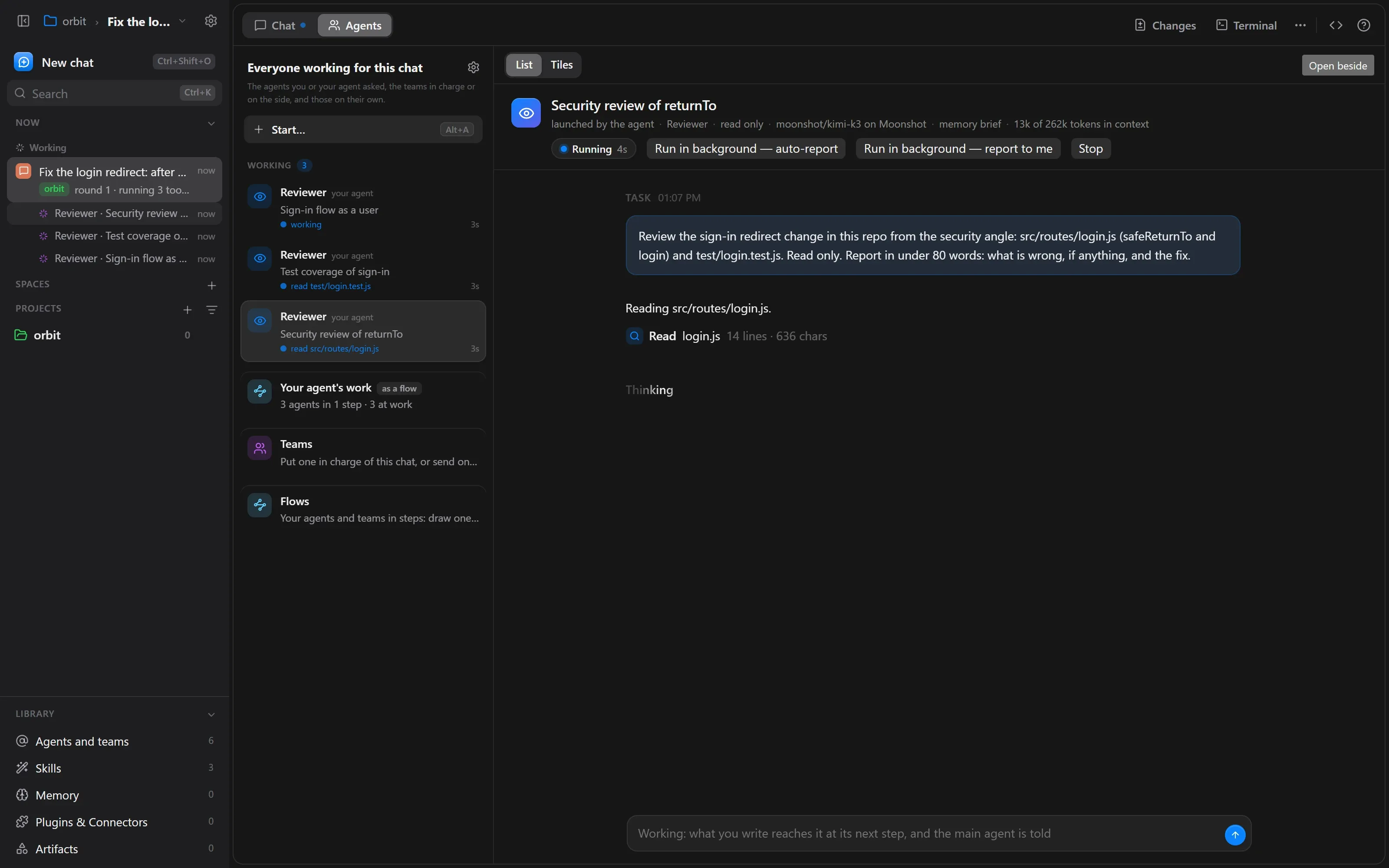
The Agents tab lists everyone working for your chat: agents you asked, agents your main agent sent, teams, task graph workers and a coding agent’s own helpers. It sorts them by what each needs from you, so you can see who is waiting on you, who is working and what each one changed.
How to use it
- Press Alt + 3, or the Agents tab in the chat’s header.
- Press Start… (Alt + A) to open a new thread. The Quick starts fill it in for you: Catch me up, Review my last change and Try it in a copy. Nothing goes until you press Send.
- Use the chips under the box to pick the model, how much of the chat the agent sees, and what it may do.
- Switch from List to Tiles to watch every agent at once, one tile each.
- Under an answer, press Send to main agent to pass it on, now or with your next message.
- When an agent edited in its own copy, press Apply to bring its change into your folder.
- Type
/btwand a question in the chat’s own box to ask the Reviewer on the side. Your main agent never sees the words.
Choose the models agents run on
Any agent can run on any model you have connected, with backups listed in order. If the first model can’t run (you’re signed out, its plan is used up, or it has no room), the next one takes over.
How to use it
- In Library › Agents and teams, press Edit on a card and set its Model: a first choice, then each backup, each at an effort (how hard it thinks).
- For one chat only, open the gear on the Agents tab. Who runs on what lists each agent and team with its model and where that setting comes from. A change there holds in this chat alone, and Use the default takes it back.
- Agents run on is this chat’s list for helpers that name no model. Add models, put them in order and set how hard each one thinks.
- Or say it in words: “a reviewer on GPT Sol from Codex”. You can also type
/subagent model="Kimi K3" provider=openrouter effort=highand then the task. - To limit how many agents use a model at once, set Agents at once on the model’s row in Settings › Providers, or on its coding agent’s card.
Plan first, then approve
For bigger work, ask your agent for a plan before anything starts. You see the tasks, change them if you want, and only then let the work begin.
How to use it
- Type
/planand what to plan (/plan the export to PDF), or/planalone for the work under way. Say how deep a plan you want in your own words. - The planning turn is read-only, whatever your permission mode: the agent reads and searches but changes nothing.
- When the card says Your plan is ready, press View the plan to open the Plan tab.
- Press Approve to start the work, or Amend to say what to change.
- If your agent offers a plan by itself (Your agent offers to plan this first), choose Light, Standard or Deep and press Plan. To skip the plan, press Just do it.
The task graph and the Plan view
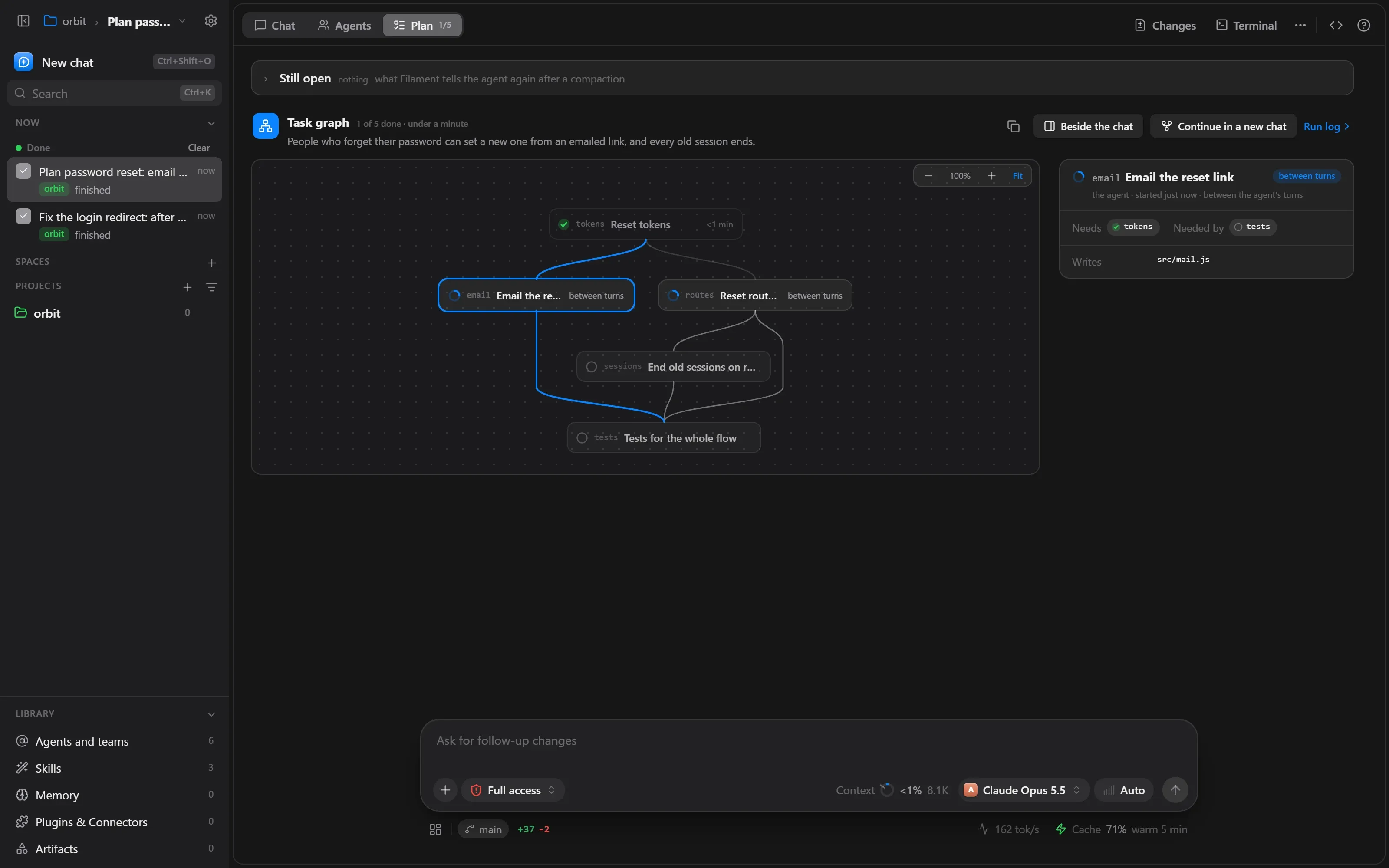
When work has pieces that depend on each other, your agent puts it on a task graph, where each task lists what it needs and the files it writes. Filament keeps the order, and the Plan view shows where every piece stands, live. The plan is kept with the chat. Notes and files saved with a task survive a compaction (when Filament summarizes older turns to make room) or a restart, and after a compaction your agent is told again what is still open.
How to use it
- Ask for work with more than one step. The first time a graph appears, the Plan opens beside the chat.
- Press Alt + 5, or the Plan tab, to see it full size. Fit, − and + zoom it.
- Press a task to open its card: who does it, its report and the commands it ran.
- Type
/graphto see the graph as your agent reads it. Copy plan copies it as text. - When a chat grows long, press Continue in a new chat on the Plan tab. The plan moves to a fresh chat with its notes and files.
Done means checked
A task can carry a check: one to five commands, such as npm test, that prove it done. Filament runs them itself, so a task marked done means its checks passed, not just that the agent said it was finished.
How to use it
- Ask your agent to give each task a check, or name one yourself: “check it with
npm test”. - Watch the task’s mark. It is cyan while checking and turns into a green tick once checked. The tick is orange if the check was flaky and grey if the task went unchecked.
- If a check fails, the task opens again and your agent sees the end of the output.
- On a done task’s card, under Hunt for bugs, pick a model on the chip and press Hunt bugs. A Reviewer reads what that task changed.
- The Reviewer’s report goes to your agent. Any fix it adds is linked to the task where the bug was found.
Run tasks in parallel
When ready tasks write different files, each can run at the same time on its own sub-agent, in its own copy of your folder. You choose what starts.
How to use it
- Type
/parallel, adding notes if you like (/parallel the route first, the docs last). Your agent re-plans so independent parts are apart, names every file each task writes, and gives each task a check. - A card after its reply lists each task with its files, where it works and the model. Press Accept to start them, or Ignore to leave them with your agent.
- Or, on the Plan, press Run them in parallel… at the top, review the sheet and press Run N tasks.
- Each result comes back to your agent as a report, and your agent applies each change.
Put Builders in charge
A team can take over a chat. Its lead plans, briefs and checks the work, and its crew does the pieces, each member in its own copy of the project. Builders ships for this job: a lead with Scout, Builder, Tester and Reviewer.
How to use it
- On the Agents tab, press Start…, pick Builders under Who, then In charge…. Or press Put in charge… under Who runs this chat on the Overview.
- In the team’s Brief, say what it is to do, check the models and press Send. Opening the Brief starts nothing.
- A gold band over the chat shows that the team is in charge. The lead’s orders go out at once, and applying a change writes it into your folder without committing it.
- When a worker reports, Filament runs its check before the lead hears. If the check fails, the work goes back to the worker, up to twice. For a task worth trying more than once, the lead may run two or three attempts, and the first one whose check passes wins.
- After each apply, Filament checks your folder in a separate copy. If the change broke a check that passed before, Filament undoes the apply and sends the change back to its worker.
- Press Back to your agent to give the chat back.
Send BugHunters on the side
BugHunters looks for bugs in what your chat built while you and your agent keep working. It runs in a chat of its own, changes no files, and brings back its findings ranked by how much harm they could do.
How to use it
- Start a message with
@bughuntersand what to look at, then press Enter. The team’s Brief opens with your words, and nothing is sent yet. - Leave What to hunt in empty to cover uncommitted work and the files this chat changed. Or give a range:
since main,main..HEAD, or files and folders separated by commas. - Press Send. On the Agents tab, a live board shows the lead and each Hunter at work.
- When it ends, its card counts what it found and shows the top three. Press Open beside to see the rest.
- Press Send to your agent… to put the result in your message box. Add your own words, such as “Fix the 7 found, one commit each”, and send.
Make your own team
Build a team from any of your agents: one lead who plans and checks, and a crew who do the pieces. Once saved, the team is ready in every chat, either in charge or on the side.
How to use it
- In Library › Agents and teams, press New team…. To start from an existing team, press Duplicate on it.
- Give the team a name and pick its lead. Any of your agents can lead.
- Add members, up to twelve seats. Give each a line saying what this team asks of it.
- If you want, set Crew runs on (models in order, with Add a backup). Under How it runs you can also set Read-only on the side, Lead runs on and a Check command.
- Press Save. Saving starts nothing: you start a team from a chat’s Brief.
Flows: agents and teams in steps
A flow runs your saved agents and teams in steps beside the chat. For example, Product plans, the Reviewer checks the plan, and then Builders builds it. A step starts once every box in the step before it is done, and you can pause anywhere to review.
How to use it
- Type
/flowand what you want:/flow build a small game engine: plan it, mock the editor, check both, then build it. Your agent drafts the flow but never starts it. When a reply offers Run as a flow, pressing it does the same. - Change the draft by telling your agent, or by hand with Move up, Move down, Remove, Add a box and Add a step.
- Make an agent box a gate. Its answer begins
Verdict: goorVerdict: not yet, and not yet holds the flow for you. - Add a your review box to stop and decide: Go on, Send back to a box, or Stop the flow.
- Press Start to run it beside your chat, or Start ▾ › In place to let your agent drive it in one of its turns.
- Press Save as a flow… to keep the steps for later. Filament ships one, Plan, check, build, hunt.
Results that arrive sealed
When another agent finishes while your main agent is in the middle of its work, the result arrives sealed: one line naming the sender and the subject. Your agent finishes the step it is on and opens the result when it chooses. A sealed result doesn’t pull your agent off its work, and the line costs far less context than the whole result.
How to use it
- There is nothing to set up. While your agent works, results from sub-agents, saved agents, teams and flows arrive this way.
- Watch for the line over the box, An envelope waits unopened for your agent. Hover over it to see each sender and subject.
- Press Open on an envelope card to go to whoever sent it.
- To give your agent every result whole the moment it lands, press the context ring, open How earlier turns are kept, and set Other agents’ results to Whole. Settings › Context sets this for new chats.
Letters between chats
Your agent can write to another of your chats, and that chat’s agent answers. For example, a chat on a cheap model can ask a chat on a strong model to check something. Within one chat, your agent and its sub-agents can write to each other the same way.
How to use it
- In your message, type
@and pick the other chat under Chats. - Say what to ask:
ask @"Parser review" whether the fix holds. - Your agent writes a letter. The other chat’s agent sees it sealed and opens it when it chooses. If that chat is at rest, the letter wakes it.
- The reply comes back to your chat as a letter.
Command tasks
Mechanical work needs no model. A command task names commands that Filament runs itself, once for each item you list (test files or build targets, for example). Each run happens in a git worktree made from a snapshot of your folder.
How to use it
- Ask your agent to run mechanical work as a command task, for example “run each test file as an item of a command task”.
- A command can use
{item}, which is filled in with each item in turn, up to 500 items. - Filament runs them on lanes, several at once. Nothing a run changes reaches your folder.
- The task is done when every run passes. If some fail, your agent hears which ones and decides: accept the task as done, run it again, change it, or drop it.
- Press Run again on the card to run every item again.