
Guide · Chapter 7
Spaces and projects
Keep many chats in order. Find and change them fast, see what runs everywhere, give each chat its own worktree, and plan a project's work together in its Space.
Chats, projects and quick changes
The left bar lists your projects and their chats, and each chat’s row shows its state at a glance. Ctrl + K finds any chat or action. It also changes the open chat’s settings when you type the change in words.
How to use it
- Press New chat. Before the first message, pick the folder the agent works in, the model and the permission mode.
- Read a chat row’s marks:
- a spinner: a turn is running
- a blue dot: it finished since you looked
- a red dot: its last turn failed
- an orange dot: it is waiting for you (hover to see on what)
- Press Ctrl + K and type a change such as
ask,max,1m,sonnetormem off. The row under This chat says what it will do. Press Enter to make the change for this chat only, or Tab to see what else you can type. - Right-click a chat for Pin, Rename, Archive, Mark as unread, Copy path, Copy session ID, Fork, Load into a new chat and Delete. Pinned chats stand under Now.
- Other shortcuts:
/in the message box lists every command.- Ctrl + F searches inside the chat.
- Ctrl + B shrinks the bar to a thin rail.
Now: what runs and what needs you
Now, at the top of the left bar, shows what is going on across all your projects. You can leave chats working and still catch whatever needs you. A row only opens what it names; nothing in Now answers, starts or sends anything.
How to use it
- Needs you lists chats that ask you something or wait for your yes, turns that stopped on an error (with the reason), and agents that failed or were cut off. Press a row to open it. A failed agent’s thread has Retry.
- Working lists each chat whose agent is running, with its round and what it is doing now. Agents and teams working for a chat sit on lines under its row. The ones you started yourself are marked yours.
- Done shows what finished since you looked. Older rows fold under Earlier, and Clear marks them as seen.
- Press Alt + N to open the first thing that needs you.
- A chat in a worktree shows its branch under its row. While its work is not on main yet, it also shows a mark such as
↑2 · 1 uncommitted.
A worktree per chat
You can give a chat its own git worktree, a second checkout of the same repository in its own folder. Several agents can then work at once without stepping on each other or on your files. Filament creates the worktree when you send; committing, pushing and merging stay yours.
How to use it
- Start a chat in a folder inside a git repository. Under Works in, pick This folder, Another worktree or A new worktree.
- For a new worktree, Filament proposes a branch name made from your message: “Fix the login redirect” gives
fix-login-redirect. Type your own name to replace it. - Send. Filament makes the branch from the folder’s last commit and puts the new folder beside the main one. Your uncommitted files stay where they are.
- Run your install in the new worktree yourself. Creating it runs none of the repository’s hooks.
Copy what git leaves out into each worktree
A worktree only holds what git checks out, so files like node_modules, .env or a Unity project’s Library are missing. A worktree template copies them in for you, using the disk’s fast clone where it has one.
How to use it
- With A new worktree picked, read its copy line. If there is no list yet, press Choose what to copy….
- The picker lists what git leaves out, biggest first, with sizes. Tick what to copy, or type a path, then press Save for your project.
- Untick an entry to skip it for this one worktree, or press Edit the list… to change the list itself.
- Send. The chat opens at once, and its first turn waits for the copy to finish. Press Send without it if you’d rather not wait.
Move a chat into a worktree
If a chat started on main and is now in your way, you can move it into a worktree. The files its agents changed go with it, and everyone else’s work stays where it is.
How to use it
- Press the chat’s name in the header and pick Move to a worktree…. It is also in the place chip’s card under the message box, and it is greyed out while a turn runs.
- Pick a new worktree or another place in the repository. The sheet lists what goes: each uncommitted file the chat’s own agents changed. Files that someone else changed too stay behind, each with the reason.
- Press Move. The files arrive in the worktree as uncommitted changes, and the same paths in the old folder go back to their last commit.
- Until a turn runs in the new place, Move back on the “Moved from …” row takes it all back.
See what the agents changed
The place chip under the message box and the Changes tab show where agents are writing and what is still uncommitted. You can review everything before you commit. Nothing in them commits or stages.
How to use it
- Read the chip under the message box. It shows the branch (
⑂ main), how far ahead of or behind its base it is (↑2 ↓1), and a+N −Ncount. While the agent works somewhere else, it turns green and names that place. - Press
+N −Nor open the Changes tab to see every agent that wrote in your folder since the last commit, with its files. Click a file to see its diff. - A sub-agent working in its own copy has a block of its own, with Apply once it is done.
- Files written outside any repository, or that git ignores, are in the Outputs tab. Press a row to open the file. Show in folder opens it in your file manager.
- Open in (
<>) in the header opens the folder in your editor (VS Code, Cursor, JetBrains) or in Explorer or Finder, or copies its path.
A project’s Space
A Space is where a project’s chats and you plan together. It holds a board of tasks, lanes that show who works where, and What happened, a logbook that fills itself in. Every chat in the project can read and change the Space through its space tool, whichever agent runs it: Filament’s own, Claude Code, Codex and others.
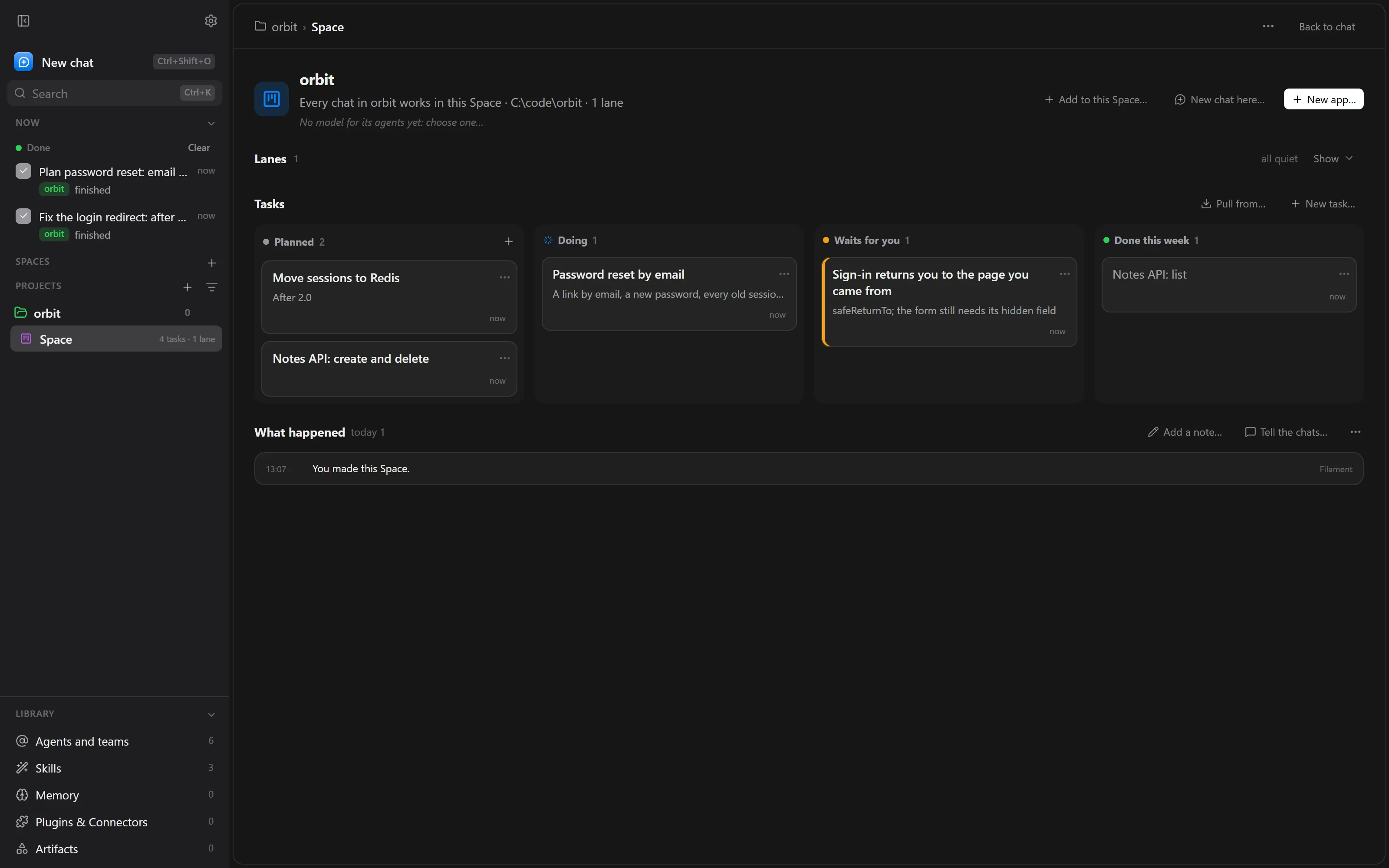
How to use it
- Right-click the project in the left bar (or press its ⋯) and pick Make a Space.
- Open the Space from the Space row at the top of the project’s chats, from the project’s menu (Open its Space), or with Ctrl + K and Go to the Space.
- A new Space opens on Start here, with three first steps: Make an app, Ask an agent here and Connect an account.
- The Board reads from top to bottom:
- Needs you here, shown only when something is in it
- the lanes
- Overlaps, shown only when there are any
- Tasks and What happened
- The top bar’s ⋯ holds the project’s settings (Permissions, Instructions, Memory in new chats), plus Connectors…, Plugins…, Skills… and Folders and worktrees….
The task board
Tasks is a shared board of what the project’s chats and you are working on. It has four columns: Planned, Doing, Waits for you and Done this week. Agents can add, take and move tasks, but only you can remove them.
How to use it
- Press New task… at the board’s head, or + on Planned.
- Press a card to change its words or column, to park it, or to remove it.
- On a task no chat has taken yet, press Start a chat on this…. The chat your first send creates takes the task into Doing.
- Pull from… in the Tasks head brings issues from Linear, GitHub or Jira onto the board, through one of the project’s connectors. When you move such a card, Filament asks whether to move the issue in the service too: Only on this board, Move in Linear too (named after the service) or Always for this board.
- When a week ends, the Record keeper writes a line in What happened: how many tasks were done, how many wait for you, how many are parked, and which one took longest.
Lanes and overlaps
Each place a project’s chats work in, the main folder or a worktree, is a lane. A lane shows which chat leads it, what that chat is doing and what the place holds compared with its base. Overlaps warn you when two lanes change the same file.
How to use it
- Press Show on the folded lanes line to open the lane cards. The arrow keys move between lanes, and pressing a lane opens its chat.
- A lane’s edge is orange when it needs you, blue while it works, and red when its last run stopped.
- New lane… opens the Start on a new worktree. New chat here… opens it on the project’s folder. Neither one sends anything.
- When Overlaps shows, press Compare…. It shows what each lane changes, with shared files first in orange, and a Merge order that hits the fewest shared files.
What happened, and telling the chats
What happened is the project’s logbook. Filament writes a line when a chat ends a turn, when a worktree is made or removed, and when a branch is merged. Agents and you add lines of your own. Tell the chats sends the board and the latest news to the chats you pick, so they stay in step.
How to use it
- Press Add a note… in What happened to write a line. Enter saves it and Shift + Enter starts a new line.
- Use the logbook’s ⋯ to show only one lane, or to copy this week’s page as Markdown.
- Press Tell the chats…, tick the chats, add words if you like, and press Tell them. Each chat gets one message at the end of its conversation: the board, what others wrote since it was last told, and your words. Its earlier turns stay as they were, so the provider’s cache keeps working.
- A chat at work gets the message after its turn ends. To deliver it during the turn instead, pick now, into its turn.
- Where you left off, at the top of What happened, shows what changed since you last looked. It has Continue in “…” and Catch me up….
Apps and dashboards in a Space
Ask an agent for a dashboard or a small app, and it lives in the Space. A dashboard is tiles; an app is a page the agent writes whole. Both read your project’s data through commands that Filament runs itself, with no AI and no shell. Nothing runs until you have read exactly what it will do and pressed Keep.
How to use it
- In the Space’s head, press New app… (or Add to this Space… › New app…). Say what it should do, or pick a starter: Pipeline, Team pulse, Reader or Numbers.
- Press Start in a chat, read the request and send it. The agent builds the app in
.filament/apps/and publishes it as a draft, shown as an italic row under the Space in the left bar. - Press Keep…, read the sheet, and press Keep. A kept app reads its sources while you look at it, and Refresh reads them right away.
- A source that fails keeps its last rows, drawn faint, and offers Fix with an agent… and Read again.
- A watch reads a source in the background. When something new matches, it writes a line in What happened, or a row in Needs you.
- If the app needs a token, type it in the app’s ⋯ › Secrets…. It is sealed on this computer and never shown again, not to the page and not to an agent.
Buttons that act
An app or dashboard can have buttons on its rows, such as Roll back to this… or Re-run…. A press never runs a command blind. Filament’s own sheet first shows the command exactly as it will run, and only Run runs it.
How to use it
- Press a button on a kept app’s row. The sheet shows what it will do, any fields to fill, and the exact command.
- Optionally, press Get a second look. The Reviewer, a saved agent that only reads, looks at what the command would change and answers in five lines, ending with a verdict. You can see and change the model it uses.
- Optionally, tick Then have an agent check it. Once the command has run, the Reviewer checks whether it did what it was for.
- Press Run. The sheet counts the time and offers Stop. When the run ends, What happened records what ran.
- Hand to an agent… opens a chat with what ran and what it printed. Nothing is sent until you send.
Issues and accounts
Connect GitHub, Linear and other services once, and the Space’s apps, tasks and chats can all use them. You can sign in to a service with more than one account, say work and personal, and pick which account each project uses.
How to use it
- In the Space’s top bar, open ⋯ › Connectors…. It lists this project’s connectors, each saying what in the Space uses it, with Add connector, Test and Sign in.
- To add a second account, open a signed-in service’s ⋯ and pick Sign in with another account…. Give the account a name (work, personal) and sign in. Your first account is called main.
- Press Use work so that this project’s chats, apps and coding agents sign in as that account from the next message on. ↺ puts it back.
- All connectors in the Library › opens Library › Plugins & Connectors with this project picked.
- To put your issues on the board, use Pull from… in the Tasks head (see the task board above).
Home and drafts
Once a Space keeps a dashboard or has a row in Needs you, the left bar gets a Home row. Home shows every project’s open rows, the chats at work and your status tiles on one page. Drafts make sure nothing leaves your machine through a Space until you press Send.
How to use it
- Press Home under Search in the left bar. Its count turns orange while something needs you.
- Filter Needs you by kind, such as chats, drafts, failing or watches. Each row carries its project’s chip, which opens that project’s Space.
- To show a dashboard on Home, open its page’s ⋯ and switch on Show on Home.
- Ask a chat for a reply, a mail or a comment, for example “draft a reply to Sara in #releases”. Its agent writes a draft, which appears as a row in Needs you.
- Press Review & send…, change the words in place if you like, and press Send. You can also Discard it (with Bring back to undo), Copy it, or Ask for a change….
Routines
A routine is work an agent does by itself at times you choose, such as a morning brief on weekdays at 09:00. An agent proposes it, and it does nothing until you have read what it will do and switched it on.
How to use it
- In a Space, press Add to this Space… › Routine… and say what to do and when. Times use your machine’s clock, and a routine runs at most every 15 minutes.
- The agent proposes the routine. Open Routines under the Space in the left bar and press Switch on….
- Read the sheet: the words, when it runs, what it may do, and Runs on, the model, which you can change. Then press Switch on.
- Each run is a new chat in the project. It is read-only, or runs in a new worktree if the routine writes. The routine’s row shows the last run and the next time, and Run now runs it once.
- A failed run turns the row red, offers Fix…, and adds a row to Needs you.
- Not sure what to automate? Add to this Space… › What do you look after… lets you tick kinds of work, and an agent proposes routines and apps for them.
Reproduce a bug
Turn a failed watch, a broken button or an open task into a reproduction. The Builder agent writes a failing test on a lane of its own, without fixing anything. You then fix the bug from that test.
How to use it
- Press Reproduce…. You’ll find it on something a watch found, on a button that did not work, in a dashboard card’s menu, and on a task no chat has taken yet.
- Filament fills the Start with a new lane (such as
repro/play-91) and addresses the message to the Builder (@builder). The message carries the report and asks for a failing test, not a fix. Send it. - The result arrives as a row in Needs you. Reproduced gives the failing test and how to run it, with Fix it… and Open the lane.
- Couldn’t reproduce lists what the Builder tried and its questions for whoever reported the bug. If it drafted a reply, the row has Review & send…; otherwise it has Copy the questions.
Spaces of your own
A Space doesn’t have to belong to a project. A Space of your own, such as Work or Personal, holds your accounts, connected once for every project it shows. It has its own chats, memory, board and routines.
How to use it
- Press + New Space… in the left bar’s Spaces section and give the Space a name.
- Press Change… to pick its folder (by default under Documents › Filament Spaces) and what its chats may read: Its own folder, Its folder and these… or The whole computer. Then press Make Space.
- Its app starters are about you, not code: To-do list, Habits, Reader and A small game.
- Add to this Space… › Include a project… makes the Space show a project: that project’s chats that ask you, its rows and its tiles. The project’s chats then get the Space’s connectors too.
- When you start work from this Space, Filament asks Where does this chat run?: in this Space, in a project, or in another Space.
A project’s folders, and cleaning up
Folders and worktrees… lists every worktree of the project with its branch, what is uncommitted and the chats at work there. It removes a worktree only when nothing would be lost. One quiet line also says what Filament itself keeps in the repository, with Clean up… to clear it out safely.
How to use it
- Open the project’s menu in the left bar, or the Space’s ⋯, and pick Folders and worktrees….
- In a worktree’s … menu, press Remove worktree…. It is only offered when the worktree has no uncommitted files, no commits its base lacks, and no chat at work. Otherwise it is greyed out with the reason. The branch and its commits always stay.
- While Filament keeps running, Put back checks the branch out at the same folder again.
- Under the folders, press Clean up…. It shows, kind by kind, which of Filament’s own copies, refs and routine branches could go, and why. Nothing is removed until you press Clean up.