
Guide · Chapter 4
Working with the agent
Run your agent on any model, steer it while it works, see every change it makes, and keep its context window under your control.
Your agent, on any model
Every model in the model picker runs Filament’s own agent loop: the model plus hands that work in your project folder.
It reads, writes and edits files, searches with grep and glob, runs shell commands, fetches and searches the web,
and uses memory. A turn runs in rounds (decide, act, observe) until the model answers, needs you, or you stop it.
There is no round cap and no clock. If a provider is busy, Filament tries the call again, up to ten times, and says so
while it waits.
How to use it
- Press New chat in the left bar.
- Before the first message, pick the folder the agent works in, the model and the permission mode.
- Type what you want and press Enter.
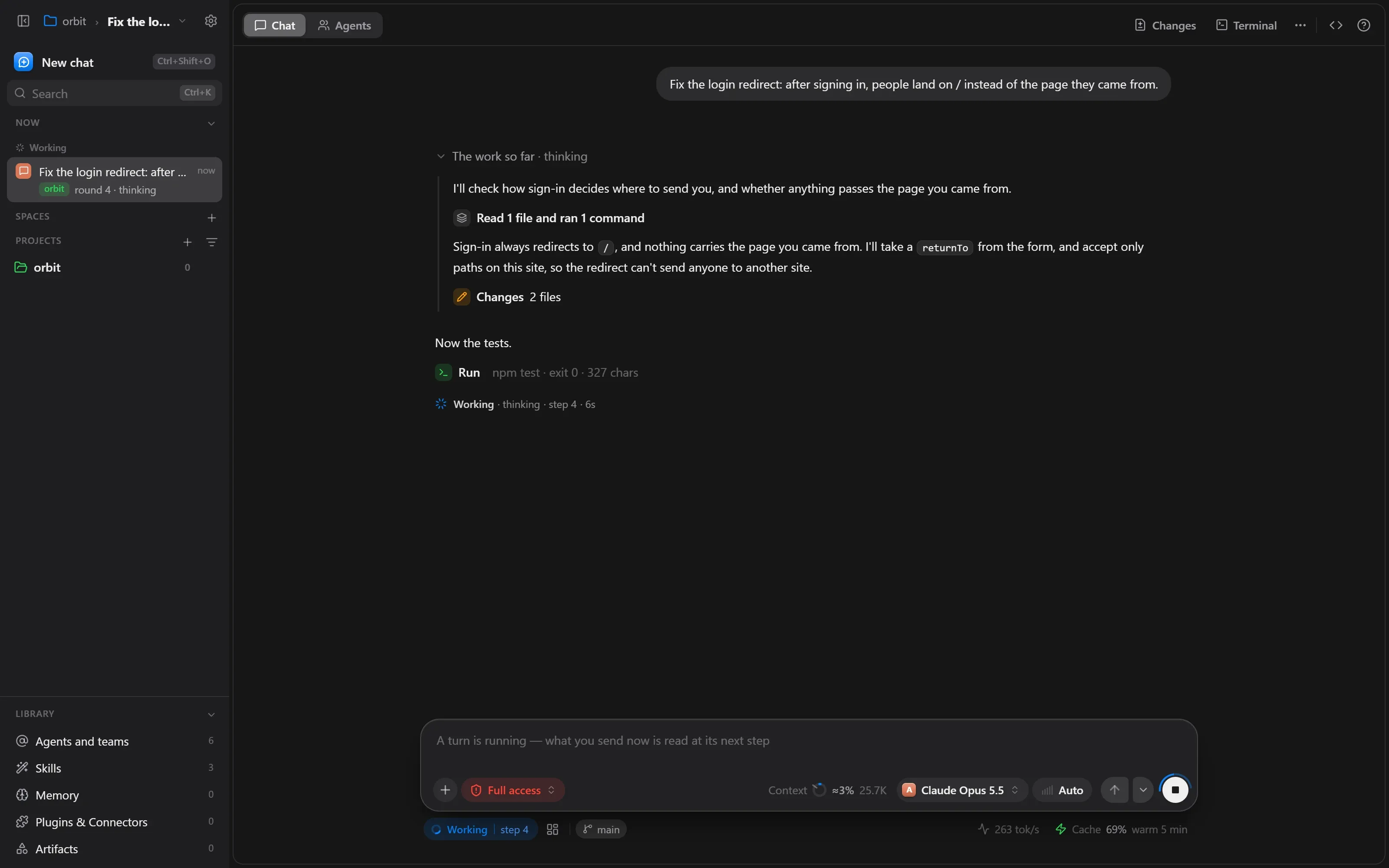
- Follow the work fold. It reads “The work so far · running npm test” while the turn runs, and “Worked for 2m · 7 tool calls” once it ends.
- Use the footer under a turn for Copy, Fork, Retry and Details.
Steer it while it works
You don’t have to wait for a turn to end. A message you send while the agent works reaches it at its next step, so you can correct course without starting over.
How to use it
- While a turn runs, type a note and press Enter. This is a steer: the agent reads it before its next round.
- Changed your mind? Until the agent takes the message, its bubble has Edit (puts the words back in the box) and Delete (it is never sent).
- To veto what the agent is doing now, press Ctrl + Enter.
- Where the agent can be interrupted, the chevron beside Send has Interrupt and send: your message goes in at once and cuts short what the agent was doing.
- Press the lit Stop button to stop the turn. If it doesn’t stop within a few seconds, Force stop appears.
- A message the turn can’t take mid-way (a file that isn’t a picture, say) waits in the queue above the box and goes when the turn ends. If the queue pauses, it says why, and Continue sends the next one.
Choose how much it may do
The permission chip beside the model sets what the agent does without asking you. Pick the mode that fits the task. A new mode applies from the agent’s next action, even in a turn already running. The modes, from least to most: Read-only (looks, never changes), Ask before changes (every change and command asks), Edit automatically (file changes run, shell commands ask first; the default) and Full access (nothing asks, and the chip’s shield turns red).
How to use it
- Press the permission chip beside the model and pick a mode. The pick is for this chat only.
- When a question appears above the box, press Allow, Always allow in this project or Deny. With Deny you can add a reason, and the model reads it.
- “Always allow” is scoped: allowing
npm testcovers it with any flags and files, nevernpm publish. - To see what you allowed, open the chip’s menu. Remembered rules lists each one in words, with Forget.
- Set the mode new chats start in under Settings › Permissions › New chats start in.
Answer the agent’s questions and plans
When the agent needs a decision, it asks you instead of guessing. The question stands above the box, and the turn waits for your answer.
How to use it
- Pick an answer with a click, or with ↑ / ↓ and Enter.
- Or pick Other… and answer in your own words.
- In a coding agent’s chat, questions come one at a time (“1 of 2”), with Back and Skip. Where several answers are allowed, each has a box.
- A plan the agent proposes shows its overview and to-dos. Accept lets it go on; Reject opens a line for what should change.
- A link the agent wants you to open shows its whole address first. Press Open or Decline.
- Moved away? The turn keeps a line saying what waits. Click it to go back to the question.
See every change
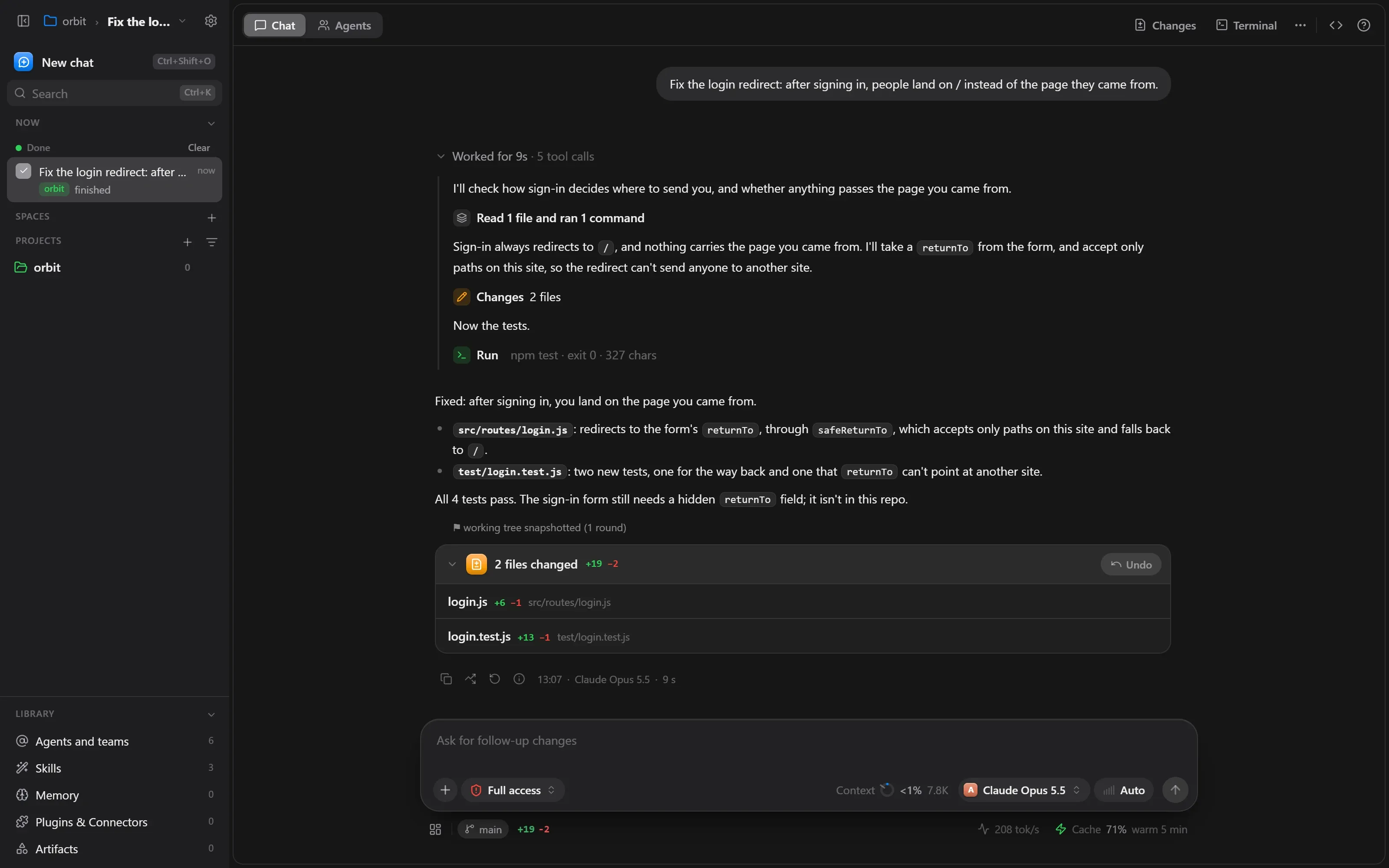
Every file the agent writes or edits gets its own card, and every turn ends with a card listing all the files it changed. The agent also can’t overwrite a file it hasn’t read, or one that changed after it read it, so an edit you made in your editor is never lost silently.
How to use it
- Find a
writeoreditcard in the work fold. It shows the file and the lines changed (+N −M). - Press the card to open the change under it. In a git project this is git’s own diff, with the lines around it.
- Under the reply, the files card lists every file the turn’s agents changed, its own and its helpers’, each once. A file in another repository or worktree says which.
- Click a file there to open it in Changes, on that turn.
Long commands run in the background
Dev servers, watchers and long builds don’t hold the agent up. They keep running in the background while the agent
goes on working, and it hears when they end. Claude Code, Codex and Cursor get Filament’s background_command for the
same job.
How to use it
- Once a command has run five seconds, its card opens on its live output with Run in background. Press it: the same command keeps running, and the agent goes on.
- A command that passes its timeout (120 seconds unless the agent sets one) moves to the background by itself instead of dying halfway.
- To see what runs, press the status capsule under the box (“Working · 1 command”). Commands lists each one with its newest line of output.
- Stop there asks first, then stops the command with everything it started.
- When a background command ends after the turn, the chat goes on by itself: “Filament went on by itself — a background command ended”.
Overview: the whole chat on one page
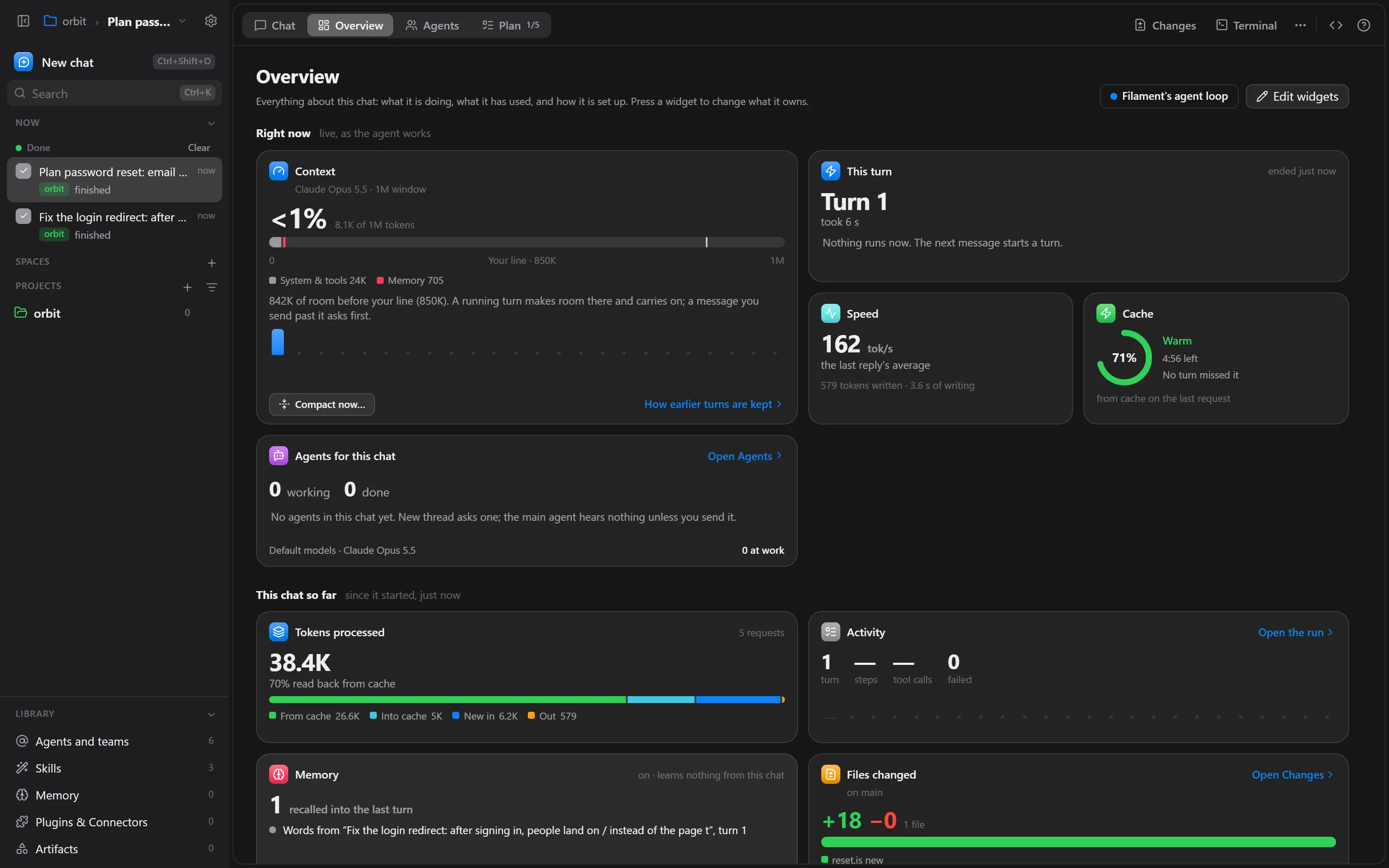
Overview shows how a chat is doing at a glance: how close it is to your compaction line, whether the cache is still warm, what the turn is doing now, and what changed. Nothing on a tile starts or spends anything, except Stop.
How to use it
- Press Alt + 2, or the dashboard icon under the box.
- Read Right now. The context tile shows how full the window is against your line. This turn’s tile shows its round, its time and the call running now, with Stop. Speed shows how fast the model writes. The cache tile shows whether the cache is warm and for how long, and what the last request read back from it.
- In the same band, a coding agent’s chat shows the account’s plan windows, and the agents tile counts who works for this chat, with the newest one’s line.
- Read This chat so far: tokens processed, activity, memory, the files changed, compactions, how the models did and the goal.
- In How it is set up, one-choice settings (the permission, a tool family, your line) change right on their tile; the rest open a sheet. Each row says where its value comes from: this chat, project, yours or default. ↺ takes the chat’s own choice back.
- Press Edit widgets to drag, resize, remove or add tiles, or Reset them. Your layout is the same in every chat.
Keep an eye on the context window
The context ring in the typing row shows how full the model’s window is. Your line marks where the chat counts as full, so you decide when room is made.
How to use it
- Press the ring (it reads like Context 6% 11K) to see what fills the window: system and tools, memory, messages, tool work, thinking and sub-agents.
- Drag the line’s thumb anywhere from 15% to 95%. Or open Your line and pick 50%, 70%, 85% or 95%.
- Type a number… takes a percent (
60%) or tokens (120k) on Enter. - Makes room by picks how room is made. Ask before making room decides whether a message past the line waits for you.
- How earlier turns are kept opens the sheet with the rest. Its control at the top switches between This chat and All new chats.
Make room your way
When a chat fills up, Filament asks before compacting (summarizing earlier turns to free room), and lets you choose how. You see what each way leaves and how long it takes before anything happens. The three ways are Same model (the chat’s own model writes a summary, reading its warm cache), Side model (a cheaper model writes it; the one to pick once the cache is cold) and Instant fold (earlier turns fold down to the words and one line per tool call, with no model call).
How to use it
- Send a message past your line. It waits, flagged waits for room, and a card asks Make room before this message?
- Pick a way, then press Compact and send. Not now puts your message back in the box as you typed it.
- To make room yourself, press Compact now… in the ring’s popover, or type
/compaction. Add a message after it (/compaction now fix the tests) to send it once room is made. - While a turn runs, Stop and compact in the chevron beside Send stops it and compacts once it ends.
- When it lands, a row stays in the transcript (“turns 1–4 compacted into one summary · 380k → 41k · 1m 12s”). Show summary opens it; Undo takes it back until you send.
Know when the cache is warm
Providers cache the start of a request. While that cache is warm, your next message reads most of the chat back from it instead of sending it all again. The Cache gauge under the box tells you where you stand, and Filament asks before a message would re-read the whole chat cold.
How to use it
- Glance at the gauge under the box. It reads Cache 80% warm 4 min, or gone cold.
- Press it for the details: what the last request read back from the cache, what it wrote, the rate turn by turn, and what the next turn will read.
- If the cache has gone cold, your next message waits and a card asks: Send it as it is, or compact first. Set this under How earlier turns are kept › Back after a break.
- If what the chat sends ahead of its history changed (Filament updated, an MCP server connected, a tool switched), the popover’s Next turn says so. The card then asks Update the session before this message? Set this under After an update.
Point at files, code and past chats with @
Tag exactly what you mean instead of describing it. A tag costs one line: the agent reads the file or chat itself, and only where your request needs it.
How to use it
- Type
@and a few letters of a file’s name, in order:@lpvwfindsloop-view.js. Pick it to tag it, for example@src/app/loop.js. - Pick a folder to see what it holds, or type a
/after its path. - To point at lines, type them before you pick:
@loop#L10-40tags@src/app/loop.js#L10-40. - Type
@#and a name, such as@#parse, to list the project’s functions, classes and other names. A pick tags its file with its lines. - Pick a past chat from the
@or#list to tag it. Its chip opens that chat. - In a sent message, a file’s chip opens the file beside the chat, at the tagged lines.
Chat commands
Type / in the box to see every command Filament answers, in groups, with Everyday first. Most commands call no
model. In a coding agent’s chat, the agent’s own commands are in the same menu, under its name.
How to use it
- Type
/and pick a command, or type it whole. /btw <question>asks a side question. The Reviewer reads the chat, changes nothing and answers in the Agents tab; your agent never sees it./statusand/costshow where the chat stands./settingsshows what is in force and where each value came from./set <setting> <value>changes one setting for this chat, and names the old value./compaction,/compact,/autofitand/autocompacteach make room in their own way. The menu says how they differ./rewindgoes back to an earlier message, after a confirm that says which files go back.
Drive a goal with /goal
Give the agent a goal and let it work round after round by itself, while you keep the brakes. Filament sizes the goal first and proposes a slice of it small enough to finish.
How to use it
- Type
/goal <text>. Filament sizes it with one call and proposes a slice. - Type
/goal acceptto make it active. Round 1 starts, and each turn that ends with the agent’s reply starts the next. - Press Hold on the goal’s card or in the chat’s status panel, or type
/goal hold, to hold it at once. - If the agent ends a reply with
[goal: blocked: <why>], answer in the chat, then type/goal go. - If it ends with
[goal: done], check the work, then type/goal done. /goal godrives on from where it halted, with 20 rounds more.
Use Claude Code, Codex or Cursor in the harness
Pick a coding agent in the model picker and it works in the chat’s folder with its own tools and its own loop. Filament draws its turn the same way as its own agent’s: a card per read, edit, command or search, live command output, the plan, its own agents, and the files card.
How to use it
- Install and sign in to the agent the usual way. The picker lists it once its program is on this computer and someone is signed in. Check now in Settings › Coding agents looks again.
- Pick it in the model picker and send your message.
- Steer with Enter. Claude Code queues it for its next step, Codex takes it into its running turn, and Cursor’s CLI takes it at its next step. Gemini and Qoder take nothing mid-turn, so the message waits in the queue.
- Type
/to find the agent’s own commands, under its name. - Its own background tasks show in the status panel under the header. A sub-agent’s row has Stop.
Switch a coding agent chat’s model or account
You can move a coding agent’s chat to another model or another account. The new side starts a new session, and Filament hands it its copy of the chat. It asks first every time, so you choose how much of the chat goes along.
How to use it
- Pick another model in the composer’s model menu, or press Continue on on a limit card. The Account gauge, first in the typing row, lists the agent’s other accounts.
- Send your message. It stops, and a card says what happens now.
- Pick a form, fullest first: Whole, Folded with the newest 2 whole, Folded or Words. Each says what it weighs in the new window.
- Press Switch and send, or Dismiss to put the message back in the box.
Understand code like an editor
The agent can ask a language server what your editor would: where a name is defined, every place it’s used, its type,
a file’s outline, and the file’s current errors. Unlike grep, it follows imports and types, and tells a name apart
from the same word in a comment.
How to use it
- Install the server for your language:
typescript-language-server,pyright-langserverorpylsp,gopls,rust-analyzerorclangd. Filament bundles none. - Open Settings › Language servers to see each server, whether it is installed here and how to install it, with a switch. A form adds a server of your own.
- Ask as usual. The agent uses the
lsptool by itself. It only reads, so it works in every mode. - After each write or edit, Filament adds the file’s errors (the first 20) to the result, and the edit’s card shows their count in red.
Images and PDFs
Show the agent a screenshot, a diagram or a spec. It sees images as images, and reads PDFs page by page.
How to use it
- Paste or attach a picture in the box. One over 3.75 MB is made smaller before it goes, and its card says made smaller.
- You can send pictures into a running turn too. The model sees them at its next step, in Filament’s own loop, Claude Code and Codex.
- Attach a PDF. A Claude model on an Anthropic-format provider reads it itself, pictures included. Every other model, and every coding agent, gets its text, page by page.
- Click a picture to see it whole; Esc closes it.
- Details › What Filament did says which way each PDF went.
Chat tabs and the status capsule
Each chat has tabs in its header for the conversation and its views, and a status capsule under the box that says what the chat is doing in a few words. Under a running turn, a live line shows the step and the clock, like Working · acting · step 75 · 17m 23s.
How to use it
- Switch views with the tabs or the keys: Alt + 1 Chat, Alt + 2 Overview, Alt + 3 Agents, Alt + 5 Plan.
- Watch the tab dots: blue while agents work, orange while one asks you.
- Read the capsule: Needs you · 2 in orange, Making room · 42%, Working | step 12, Stopped with the error’s first words, or Still open | 2.
- Press the capsule for the goal, the plan, the agents at work, the commands, what is still open, the changes and the terminals.
- Press the chat’s name in the header for its menu: Pin, Rename, Archive, Fork… and more.
Work with panes beside the chat
Keep what you use next to the conversation: Changes, Outputs, Files, Terminal, Run and Next request. Panes tile themselves as you open them, so you don’t arrange windows by hand.
How to use it
- Press Changes or Terminal in the header, or open another pane from ⋯.
- Panes tile by one rule: the first in a column beside the chat, the second splits it into two rows, the third starts a second column, the fourth makes 2 × 2.
- Drag a pane by its title onto another’s tabs or one of its edges. Drag the gaps to size them; a double-click evens them out.
- Pop out puts a pane in a tab of its own over the chat. In the desktop app, In a window of its own opens it in a separate window.
- Layout in ⋯ picks Grid as they open, One column or Tabs in one pane.
Picks up after a restart
If Filament restarts in the middle of a turn, the work isn’t lost. Filament tells the agent what happened and asks it to go on from where it stopped.
How to use it
- Start Filament again. The cut turn reads cut off before its reply, with what was kept from its run’s log.
- Filament sends the chat a turn of its own, drawn as Filament went on by itself — a restart cut off the turn above.
- That turn works like any other: it asks you for permissions, and Stop stops it.
- To have cut turns wait for your message instead, turn off Go on after a restart in Settings › Agent loop.
See exactly what the agent is told
Nothing is hidden. You can see what your next message will send, why each request looked the way it did, and the whole system prompt as it went out.
How to use it
- Open Next request from the header’s ⋯. It shows what the next message sends, part by part and turn by turn, including your draft as you type.
- Under any turn, press Details for its numbers, What Filament did and Explain this request.
- Open Run for the run in three depths: Rounds, Calls and For developers.
- In the console, Settings › Prompts shows every system prompt Filament writes, as sent, with your own overlay for the agent loop.