
Guide · Chapter 10
Use Filament from other tools
Point Claude Code, Codex, an SDK or any OpenAI- or Anthropic-style tool at Filament, and use the console to see and shape every request.
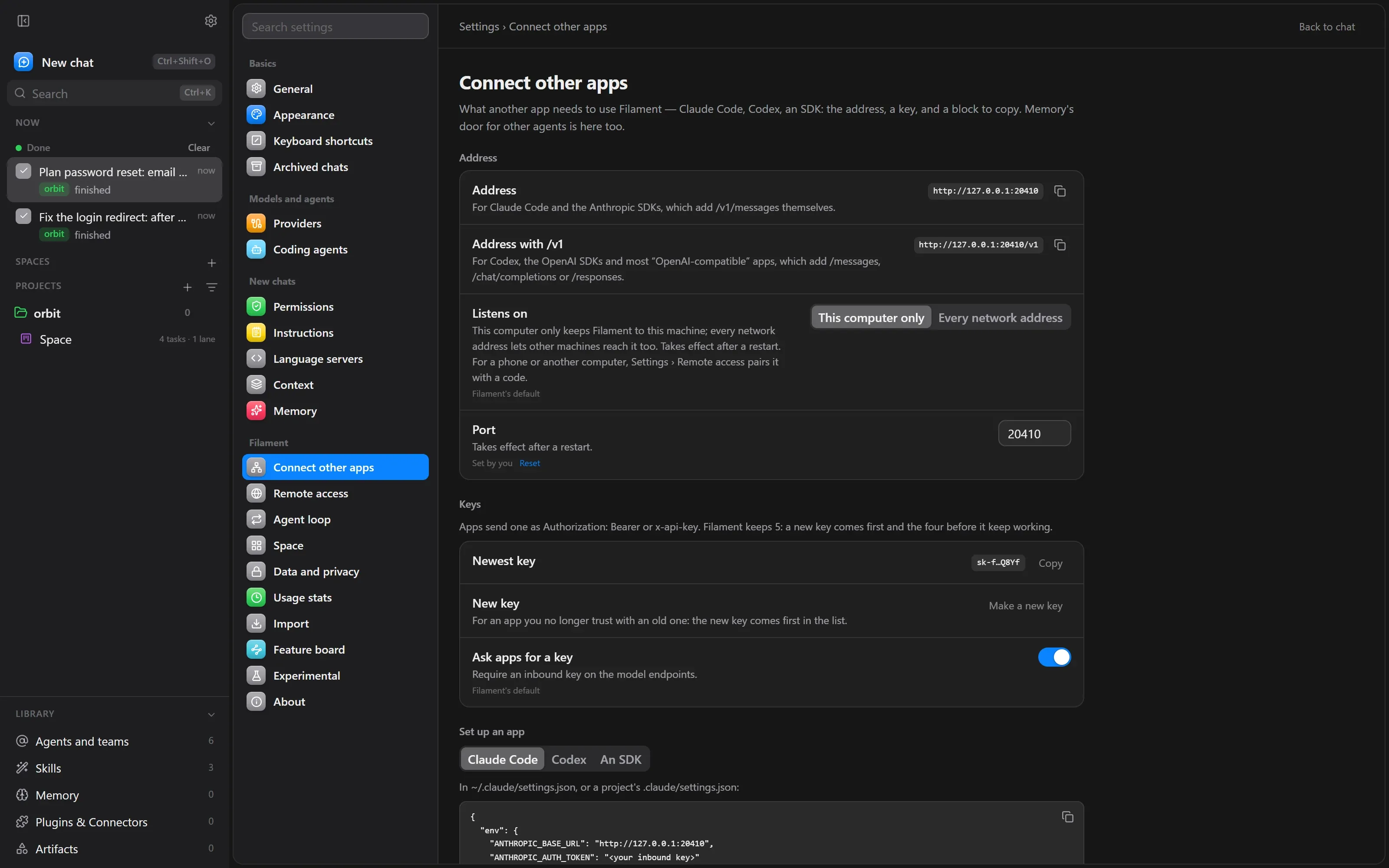
Connect your tool
Any tool that talks to Anthropic or OpenAI can talk to Filament instead. You get one address and one key for every model and coding agent you have set up. Filament serves both formats on the same port.
How to use it
- Open Settings › Connect other apps.
- Copy the address your tool needs:
http://127.0.0.1:20300for Claude Code and the Anthropic SDKs, which add/v1/messagesthemselves.http://127.0.0.1:20300/v1for OpenAI-style tools, and for tools that add only/messages.
- Press Copy on an inbound key and paste it into your tool as its API key.
- Set the model to any name Filament serves, such as
claude-opus-5,claude-opus-5-xhigh,cursor/composer-2.5orqd/qmodel_38max. - For Claude Code, Codex or an SDK, copy the ready-made block instead. It refers to your key without containing it, so copy the key separately.
Choose an endpoint
Filament serves three API formats. Use the one your tool already speaks. Any model works through any of them, because Filament translates between formats where needed.
How to use it
- Anthropic Messages (Claude Code, the Anthropic SDKs):
POST /v1/messages, plusPOST /v1/messages/count_tokensandGET /v1/models. - OpenAI Chat Completions (most “OpenAI-compatible” tools):
POST /v1/chat/completions, plusGET /v1/modelsandPOST /v1/embeddings. - OpenAI Responses (Codex CLI, the OpenAI Agents SDK):
POST /v1/responses. - If your tool takes several providers, point both entries at Filament. The Anthropic entry is the better choice for Claude and for coding agents, because it carries thinking blocks and images natively.
- Not sure what your tool uses? Open one of its requests in Traffic and read connected as.
Choose which models your tool lists
When your tool asks Filament for its model list, it gets the names you should type. That includes your routes’ own names and each provider’s models under the names your routes give them. You can keep that list short without losing access to anything.
How to use it
- In the console, open Destinations › Upstreams and select a provider.
- Untick show on a model to drop it from the list and from every picker. It still works when asked for by name.
- To also list effort variants such as
claude-opus-5-xhighas their own entries, open Advanced in Settings › Connect other apps and turn on the effort suffixes there. - Press Save changes if you edited in the console.
Keep a chat one conversation
Filament ties each chat in your tool to one conversation, so a coding agent keeps its session from message to message.
How to use it
- If your tool can, send an
x-session-idheader per chat. Filament also acceptsx-filament-conversation,x-opencode-session,x-conversation-idandx-thread-id. - If your tool sends none, Filament recognizes a chat by its folder and first message. A new chat that opens with the same words in the same folder continues the same agent session.
- To break that link, press Forget under Home › Agents.
Choose where Filament listens
By default Filament answers only programs on this computer. You can open it to your network, for example for a tool in a container or on another machine.
How to use it
- Open Settings › Connect other apps.
- Choose This computer only (
127.0.0.1) or Every network address (0.0.0.0), and set the port if needed. Both take effect after a restart. - Keep the setting that apps must send a key turned on.
- If a tool calls Filament by another name (a reverse proxy, a LAN host name, Docker’s
host.docker.internal), add that name to the extra host names under Advanced. - To use Filament from a phone or another computer, pair it in Settings › Remote access instead. See Machines.
Open the console
The console is a web page for everything Filament routes. It shows each request, what changed in it and where it went, and you edit routes, providers and rules there.
How to use it
- Open
http://127.0.0.1:20300/in a browser on this computer. - Use the seven places in the sidebar: Home, Traffic, Usage, Memory, Destinations, Lab and Settings. Each has tabs along the top.
- Press Ctrl + K to jump anywhere, copy the key or explain a model name.
- Edits to routes, providers, rules and settings stay in the browser until you press Save changes. Discard throws them away.
- Pick a theme, accent colour and density under Appearance at the bottom of the sidebar.
Home
Home tells you at a glance whether everything is flowing and what is happening right now.
How to use it
- Check the banner at the top: green means requests are flowing, red means they are failing. The base URL and key are there, and Copy always works.
- Turn Failover between providers on or off here.
- Watch Live: a request is pending until its first byte arrives, then in flight with tokens per second and what the agent is doing. A warning appears when the output goes quiet.
- Use Upstream health for each provider’s errors, latency and cooldown, with Reset.
- Open Agents to see running agent processes and sessions.
Traffic
Traffic lists every call that passed through Filament, newest first. Use it to see exactly what was sent, what came back and what Filament changed.
How to use it
- Open Traffic. Filter by status, provider, a text search or changed only.
- With group conversations on (the default), each chat is one row. Click it to see its requests.
- Click a request for its details: timing and token bars, the error if any, the provider’s response headers, Changes applied, and for translated requests what was received next to what was sent.
- A failover pill marks requests a backup served. All it said shows what the failed provider or agent said.
- For a coding agent, the status pill names the kind of failure. Point at it for what it means.
Replay & compare
Replay & compare sends a request you already made to another model, so you can compare the two answers on your own real work.
How to use it
- In Traffic, open any request.
- Choose another model to replay its exact stored body on.
- Read both answers side by side, each with its tokens and timing.
- Find replays in Traffic by their ↻ pill, linked to the original.
Usage
Usage keeps your traffic per day for 400 days, separately from the request log. Use it to see which models you use, how fast they are and how well caching works.
How to use it
- Pick a period: Today, Yesterday, 7 days, 30 days, This month, Last month, All time, a custom range, or one day with the ‹ › arrows.
- Read the cards: requests, tokens in and out, cache hit rate and average speed.
- Click a provider’s card or a row of the Model leaderboard to filter the table. The leaderboard ranks models by tokens generated, with speed, first-byte wait and cache hit rate.
- Group the Per model table by model and provider, by model, or by provider. “asked as” shows the names your tool used.
- Press Download CSV to export the selection.
Rules: fix requests before they leave
Layers between a tool and a model often lose things: thinking that comes back empty, effort quietly lowered, cache markers dropped. Rules fix these in one place, and every change shows on the request.
How to use it
- Open Settings › Rules for the global defaults. Each field shows its default and its effect.
- To override a rule for one provider or one route, open its rules drawer and untick inherit on that field.
- Main groups: thinking, effort, speed (Anthropic fast mode), translation, parameters, caching, tools, headers and resilience.
- Check what a rule did in Traffic under Changes applied, for example “effort xhigh (from suffix)”.
- Press Save changes.
Translation between formats
An OpenAI-format request can reach an Anthropic provider, and the other way round. Filament converts the request, the reply and the stream, so your tool doesn’t need to care which format a model speaks.
How to use it
- Nothing to set: translation is on by default (
rules.translate.modeset toauto). - To refuse cross-format requests instead, set the mode to
neverin Settings › Rules. - Open a translated request in Traffic to compare each field as received and as sent.
Templates
Templates are ready-made bundles of settings, for example a direct Anthropic setup, one coding agent as a model, or how much of each request to log.
How to use it
- Open Settings › Templates.
- Press Preview to see exactly which settings would change.
- Press Apply to save them.
Templates include Direct to Anthropic, an agent as a model (Cursor, Qoder, Gemini CLI, Claude Code, Codex), Qoder cloud models, Effort by model suffix, Maximum quality, Cost guard, and Full observability, Summary logging or Quiet logging.
Assistant
The Assistant changes Filament’s configuration when you ask in plain words, such as “route glm-* to my OpenRouter upstream and make thinking visible”.
How to use it
- Open Assistant in the sidebar and pick an answering model.
- Ask in plain words. It edits a draft of your configuration and can test providers or run a dry run.
- Press Apply to save the draft, or Discard to throw it away. Stop abandons a slow answer.
- Ask “how does X work” to get answers from the guides. It can also open the right page for you.
Playground and Dry run
The two Lab pages let you test without a real tool. Playground sends real requests. Dry run shows what would be sent, without sending anything.
How to use it
- Open Lab › Playground, choose Anthropic-style or OpenAI-style, and send a chat,
count_tokens, the model list or embeddings. - Read the reply as a client sees it, the raw events, and the record Filament made.
- Leave
max_tokensempty to send the most the model can write. - Open Lab › Dry run, paste a request body and choose its format.
- See the route decision, the merged rules and the exact body and headers that would be sent.
Destinations: providers, routes and models
Destinations is where you manage what answers. Upstreams holds your providers and agents, Routes says where each model name goes, and Models compares where each model is served.
How to use it
- Open Destinations › Upstreams to add, test and edit providers. See Models and providers.
- Open Destinations › Routes to change where names go.
- Open Destinations › Models to compare providers for the same model. Models served by more than one provider sort first.
- Tick include coding agents to list agents’ models too.
- Press card → to jump to a provider.
Console settings
The console’s Settings › General holds Filament’s server, keys and logging settings.
How to use it
- Inbound API keys: press Rotate key to make a new one. The previous four keep working, so you can move tools over one at a time.
- Server: host, port, whether a key is required, extra host names, the body size limit and the log level.
- Observability: how much of each request to keep (
none,summary,shapedorfull). - Alerts: what Filament warns you about, as a banner on every page and a line on the tray card.
- Raw config: the whole configuration as JSON. Secrets show as
__SECRET__and are kept when you save. - Prompts, its own tab under Settings: every system prompt Filament writes, with your own addition for the agent loop.
Endpoints at a glance
A quick reference for scripts and tools. The model endpoints need an inbound key unless you turned that requirement off.
How to use it
- Send your key as
Authorization: Bearer <key>orx-api-key: <key>. - Model endpoints:
POST /v1/messages(also/messages),POST /v1/messages/count_tokens,POST /v1/chat/completions(also/chat/completions),POST /v1/responses(also/responses),POST /v1/embeddingsandGET /v1/models. GET /healthanswers without a key.POST /mcp/memorygives any agent Filament’s memory over MCP. See Memory.- Useful headers:
x-session-idto tie a chat together, andx-filament-cwdto name an agent’s folder.