
Guide · Chapter 12
Security and reliability
How Filament keeps your models, keys and folders private, what it does when a provider fails, and how it counts tokens and speed.
Private by default
Filament listens on 127.0.0.1, so nothing outside this computer can reach it unless you choose to allow it. Other machines get in only by pairing, and only for as long as you leave them paired.
How to use it
- Leave Settings › Connect other apps on This computer only unless you mean to share the model endpoints.
- To share them on your network, choose Every network address, keep the setting that apps must send a key turned on, and restart Filament.
- To use this Filament from a phone or another computer, pair it in Settings › Remote access instead. See Machines.
- A tool on another machine reaches only its own project’s memory.
Keys guard your models
The model endpoints answer only to requests that carry one of your inbound keys. They also answer only to host names that point at this machine, which stops web pages from reaching Filament through a different domain name (a DNS-rebinding attack).
How to use it
- Copy a key from Settings › Connect other apps. Copy puts it on the clipboard and nowhere else.
- To change keys, press Make a new key. The four keys before it keep working, so you can move tools over one at a time. Older keys stop working.
- If a tool reaches Filament by another name, such as a reverse proxy, a LAN host name or Docker’s
host.docker.internal, add that name to the extra host names under Advanced. Otherwise it gets HTTP 421.
Secrets are encrypted at rest
Provider keys, account tokens, inbound keys, the admin token and credentials in agent settings and custom headers are stored encrypted. The console, configuration diffs and the Assistant show only that a secret is set, never any part of it.
How to use it
- Back up
secret.keytogether withconfig.json. Withoutsecret.key, the encrypted values can’t be read. - If a secret was sealed with a different
secret.key, the console’s Settings lists it under Secrets Filament cannot read, and its provider’s card says so too. - To recover it, put that
secret.keyback besideconfig.jsonand restart Filament. - Or type a new value in its place, or press its Remove. Leaving the field empty keeps the old secret.
Logs keep only what you allow
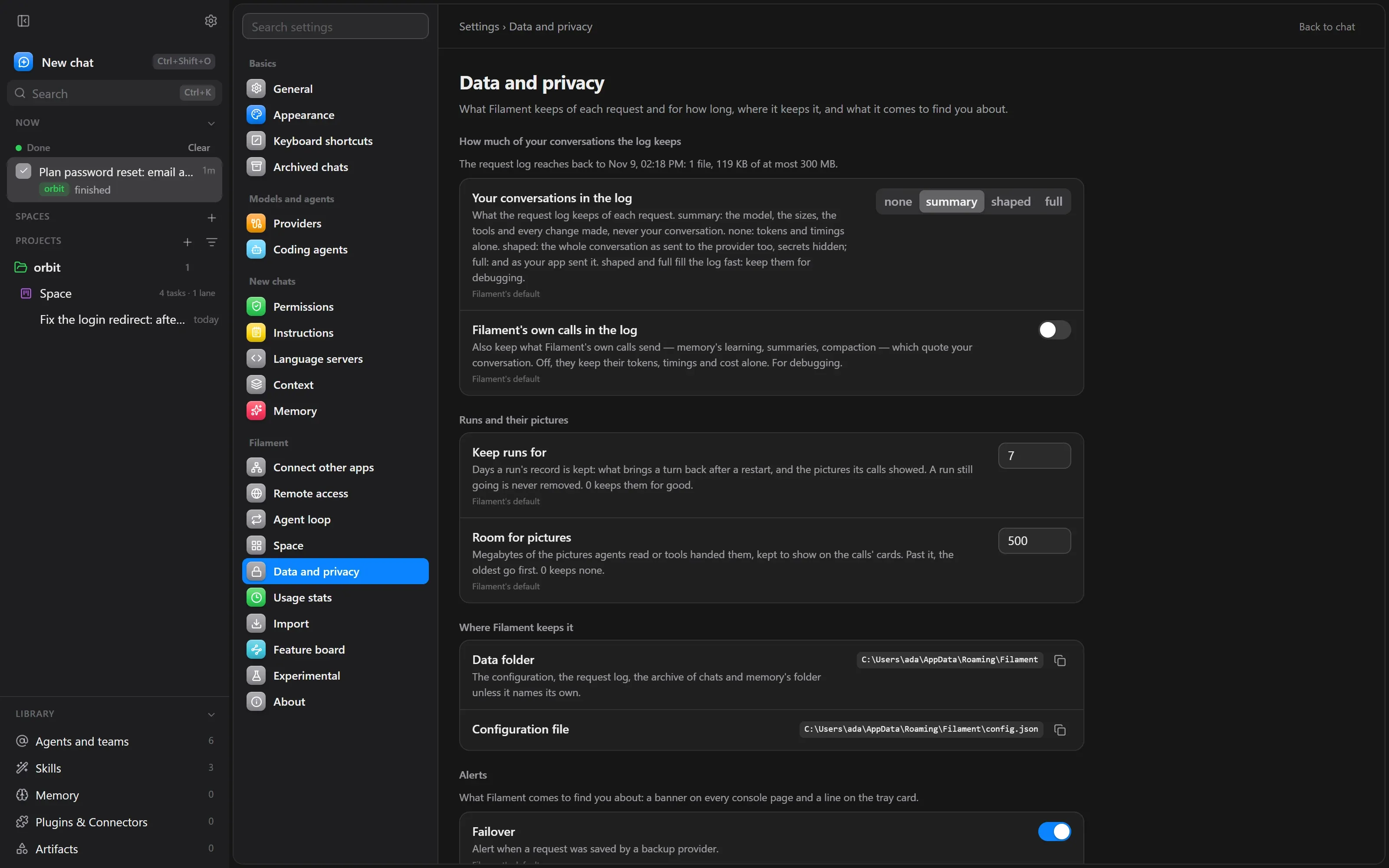
The request log keeps only as much of each request as you choose. By default it keeps sizes and shapes, not your text. Keys, Bearer tokens and fields and headers that look like credentials are blanked before anything is stored. Stored bodies never leave this computer.
How to use it
- Open Settings › Data and privacy.
- Choose how much of your conversations the log keeps (
observability.storeBodies):none,summary,shapedorfull. - Choose the same for Filament’s own calls (
storeInternalBodies). - With whole bodies kept, the page warns how fast the oldest records roll off.
- The log’s other settings are under Observability in the console’s Settings › General.
Agents stay fenced
When another tool drives a coding agent through Filament, the agent acts on your files, so Filament decides what it may do and where. Permission requests are answered by the policy you choose. The working folder comes from your tool, never from pasted text. Your tool’s own tools are never handed to an agent.
How to use it
- Choose each agent’s permission policy (
acp.permissions):allow-all(the default),allow-once,read-only,reject, oraskto be asked. - To keep agents in certain folders, list full paths in
acp.cwdAllowlist. Each path covers its subfolders. - If Filament listens beyond this computer, list folders in Roots under Settings › Agent loop. With none listed, a coding agent works in whatever folder a request names, including a folder named by another computer.
Only the app’s window can approve
While the desktop app runs, approvals belong to its window. Answering a question, Always allow, a card’s Allow or Deny, pairing codes and other machines’ agent grants all need a key that the app gives only to its own window. So no program on your computer, not even an agent’s own background shell, can approve itself.
How to use it
- Answer questions and permissions in the app’s window. A browser tab or the command line on this computer is refused.
- Make pairing codes in the app’s Settings › Remote access. While the app runs,
filament pairtells you to do this. - A device you paired from another machine can answer too, if its pairing was started in the app’s Settings › Remote access.
Replies can’t reach other sites
A reply can’t make your browser load anything from another site, or call Filament’s own API, without your say-so.
How to use it
- An image from another host shows as a chip naming that host.
- Press Show image if you trust the host.
- Images on Filament’s own address, and links to Filament’s API (
/api/…), show as text and are never loaded. Links to Filament’s own pages stay links.
Backups and cooldowns
When a provider fails before it starts answering, Filament tries the next provider in that model’s backups. Failures that count include a rate limit, a server error, an unreachable server, a model the provider doesn’t have, or a bad key. The failed provider cools down and is tried last until it recovers.
How to use it
- Turn on Use backups when a provider fails in Settings › Providers, or Failover between providers on the console’s Home.
- Give your models backups. See Models and providers.
- In Traffic, a failover pill marks requests a backup served. Open one to see which provider failed, and press All it said for its full message.
- Once a provider recovers, press Reset under Upstream health on Home to end its cooldown early.
Busy providers are tried again
When a provider is busy and fails a call from Filament’s agent, a sub-agent or a compaction summary before the reply starts, Filament waits and tries again. It waits 1 s, 2 s, 4 s and so on, up to 32 s between tries, or as long as the provider asks, for ten tries in all.
How to use it
- There is nothing to set. The turn’s live line shows each wait, and each wait is also a line on the request’s record.
- Press Stop to end the wait.
- If a reply breaks partway, the part that arrived stays on the page under a line saying where the stream broke. The chat keeps the new try’s answer.
- A reply that sends nothing for ten minutes in the middle is cut and tried again. A slow reply that is still thinking is never cut.
When a provider can’t serve your account
If a provider says your allowance is used up, or refuses your account or key, waiting won’t help. Filament stops at the first refusal and tells you, for example: “Not tried again: zai says this account’s allowance is used up.”
How to use it
- Top up, or wait for the reset that Upstream health counts down. Without a reset time from the provider, Filament waits 15 minutes.
- For a refused key, fix it in Settings › Providers. Changing the key, address or type lets the provider back in.
- Press Reset to try the provider again now.
- For a coding agent, a plan window that resets, or signing in with another login, also lets it back in. After signing in again with the same login, press reset.
While a provider can’t serve, sub-agents skip its models and its backups are tried first.
Slots at a provider
Agents at once caps how many agents run on a model at a time. Filament also learns a lower ceiling when a provider refuses more calls on your account, so calls wait their turn instead of failing.
How to use it
- Set Agents at once on a model’s row in Settings › Providers, from 1 to 64. Leave it empty for no limit.
- If a turn says “waiting for a slot”, wait or press Stop. The line says what holds the slot.
- To get past a learned ceiling, raise the limit at the provider, or add a second model to the chat’s list.
- Press Reset under Upstream health on Home to forget learned ceilings now.
Long calls and big conversations
No clock cuts a call that is still sending: Filament waits however long a provider takes to start or continue a reply. Only a reply that goes silent for ten minutes mid-stream is cut and tried again. If your tool hangs up mid-stream, Filament notices at once and tells the provider to stop.
How to use it
- Let long calls run. A call ends when the provider answers or fails, or when your tool hangs up.
- A conversation too big for the model is sent unchanged, so the provider’s refusal reaches your tool and your tool’s own compaction can act.
- In a Filament chat, type
/autofitto summarize just enough of the oldest turns to fit, or/autofit statusto see the numbers. - If an agent’s process dies, send your next message: it restarts. A crash in one request never takes Filament down.
Restart without losing work
A restart is graceful. Filament stops taking new requests, gives turns in progress up to 20 seconds to finish, then exits, and the app starts exactly one new Filament.
How to use it
- Restart when nothing is running, from Settings › About or the desktop app’s Restart.
- A message sent during the restart fails at once with “Filament is restarting; send again in a few seconds”. Send it again.
- A coding agent such as Claude Code reopens on your next message, in the same session with its history.
How tokens and speed are counted
Every number Filament shows comes from the provider’s own reply where possible. Filament counts on this computer and never asks a provider for a count.
How to use it
- Tokens (input, cache read, cache write, output, thinking) come from the provider’s usage figures. For an agent that doesn’t report them, Filament estimates and marks the figure as estimated (≈ on Usage).
- Cache hit rate is cache read ÷ (fresh input + cache read + cache write).
- First byte is the time from the request arriving to the first byte of the answer.
- Tokens per second is output tokens ÷ the time after the first byte, or ÷ the whole turn for agent turns. Replies under 10 tokens or 200 ms aren’t rated.
- Context fill is reported by the agent (Claude Code), and shown on the request and by
/status. - Where a price is shown, it is the model’s price at that provider, set with Tune ›, or else Filament’s built-in API rates. Turns billed through a subscription have none.
See these numbers per request in Traffic, per day in Usage, and in a Filament chat with /status and /cost. Usage’s By client table assigns each request to the tool that started the work.