
Guide · Chapter 5
Memory
Filament remembers your rules, your projects and your past chats, and gives each model and coding agent the part that fits, right when it needs it.
Memory that learns you
Models forget you between chats. Filament’s memory doesn’t. It keeps every conversation and learns your rules, preferences, decisions and how-tos from them. Then it gives each new chat what fits, on any model and in any coding agent. It is on from the first start, with no commands to learn.
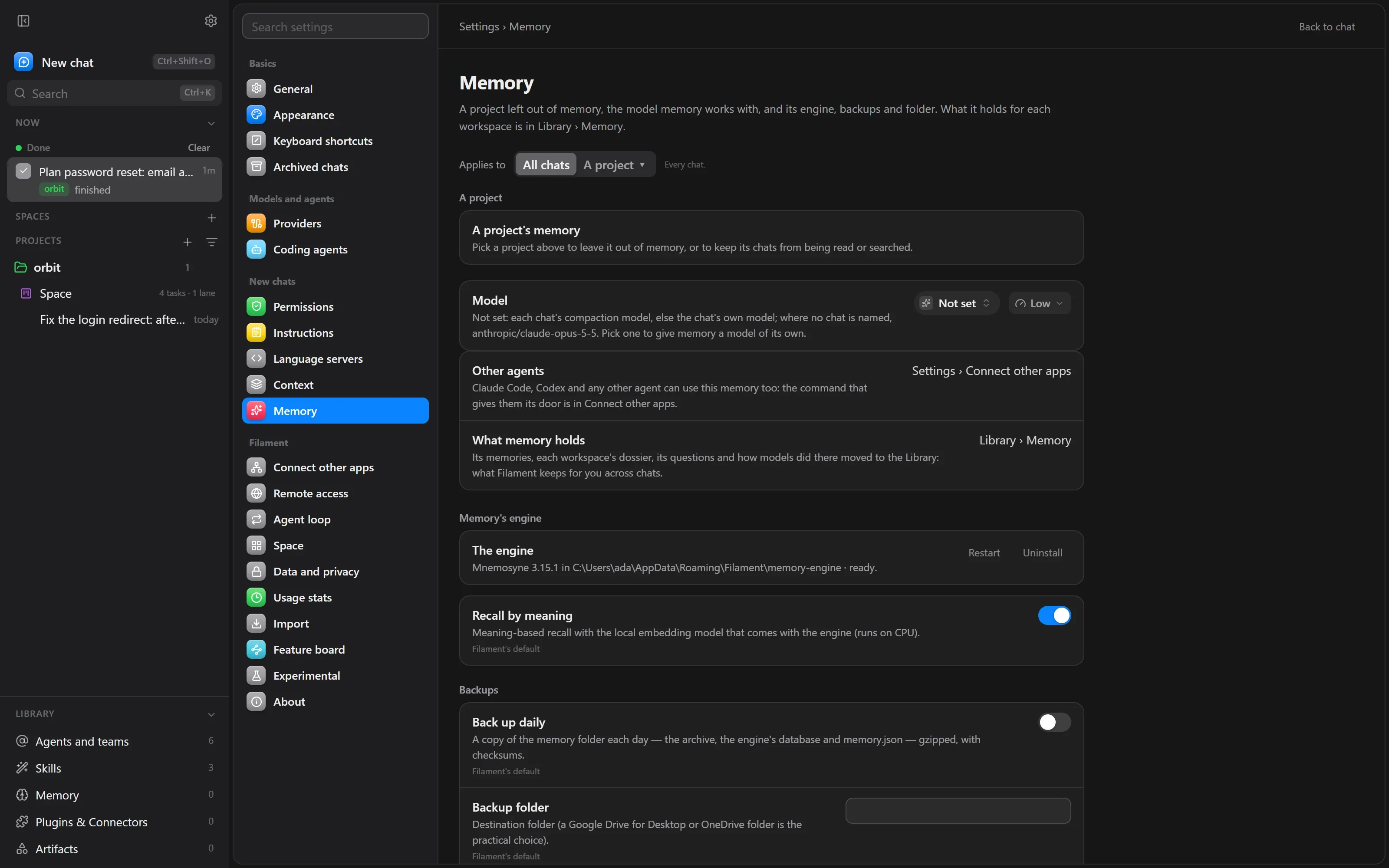
How to use it
- Chat as usual. Memory learns at natural breaks: when a chat compacts, after 30 minutes idle, or when you ask.
- The first time Filament starts, memory’s engine installs itself in the background. It installs from the copy that came with Filament, about 650 MB, and downloads nothing. Settings › Memory shows how far it has got. Until the engine is ready, memory finds things by matching words, not by meaning.
- To choose the model memory learns with, open Settings › Memory and set Model, with its effort chip (low unless you pick another). With none set, memory uses the chat’s compaction model, else the chat’s own.
- What memory learns by itself is marked inferred until you confirm it.
Memory at the moment of action
Memory speaks up on the very tool call that would repeat a known mistake, before the model takes its next step. Unfinished work comes back when a later chat touches the same file, and a saved how-to arrives whole when you name its goal. This works for Filament’s own agent and for Claude Code, Codex and Cursor working through Filament.
How to use it
- Tell the agent about a pitfall in your own words, for example “don’t run
npm testbare here, run it asCI=1 npm test”. It files the pitfall quoting you, and your word counts at once. - Memory also learns pitfalls by watching. When a command fails and then works set up another way, memory notes it. Once a second session sees the same thing, memory says it whenever a call would repeat the mistake.
- Save a how-to with
@mem procedure How to cut a release: 1. … 2. …. A later message such as “let’s cut a release” brings it back whole. - Leave work half done and memory keeps it as an open thread. The thread comes back once when a later chat touches that file, and stops coming back after a session finishes the work.
Steer memory from the chat
Each chat has a Memory pill that shows how many memories the last turn was shown. A dot appears when memory spoke at a call or has a question for you. You can fix what memory got wrong from here, without leaving the chat.
How to use it
- Press the chat’s Memory pill. Its popover lists:
- the reminders said at the turn’s calls
- each memory the turn was shown
- what the turn taught memory, and what that replaced
- memory’s questions
- this chat’s switches
- Press Confirm on a memory that is right, Correct to rewrite one, or Retire for one that is not true.
- Answer memory’s questions with Accept or Reject. Only words you accept become a memory.
- When the agent searches or saves memory itself, a Recalled or Remembered row shows in its work. Open the row to see what was asked and what came back.
See what the agent was briefed with
Every new chat opens with a short briefing: your rules first, then the project’s dossier and what memory found. A quiet line over the first reply says what went in, so you know what the agent started with.
How to use it
- Open the Memory briefed the agent… line over a chat’s first reply. It lists each earlier chat with its title, day and summary, and the memories in their own words.
- Press Add to next message on an earlier chat to bring it into your next message.
- To point at a past chat yourself, type
@or#in the message box and pick the chat from the list. Your message carries a tag for that chat, shown as a chip. The agent loads the chat only if your request needs it, so a mention costs one line, not a whole chat. - If the chat’s model has no memory tools, the list says the picked chat is pasted in when you send.
Memory commands in any chat
Type @mem and a command in any chat, in Filament or in a tool that talks through Filament. The prefix is @mem because /, ! and # never reach Filament from Claude Code.
How to use it
- Save something in your own words with
@mem rule <text>,@mem prefer <text>,@mem remember <text>(a fact) or@mem procedure How to <goal>: 1. … 2. …. - Look things up:
@mem recall <words>searches memories.@mem sessions <words>finds past chats. With no words, it lists recent ones.@mem load <n|id>attaches a past chat to your next message. Add a view to choose how much:chat,summary,full,compactorlineage(the whole chain, oldest first).
- Fix a memory:
@mem forget <id>retires it and keeps it as history.@mem history <id>shows every change to it. - Answer memory’s questions with
@mem inbox, then@mem accept <q>or@mem reject <q>. - Tidy the project’s memory now with
@mem curate. Take a tidy-up pass back with@mem undo <r>. @mem offand@mem onmute and unmute memory in this chat.@mem statusand@mem helpcover the rest.
Library › Memory and the project dossier
Library › Memory holds everything memory knows, by workspace: each memory with how it is known, the project’s dossier and memory’s questions. The dossier is a short, living document about the project. Every new chat reads it right after your rules. Between sessions, a background curator keeps it tidy.
How to use it
- At the foot of the left bar, open Library › Memory. A chat’s memory widget opens it on that chat’s folder.
- Read the dossier. Each line names the memories it rests on, and a line disappears as soon as one of those memories is retired.
- Confirm memories marked inferred, and correct or retire the rest. A retired memory has Restore.
- To copy a memory’s words into a skill you made in Filament, use its wand, Add to a skill…. Pick the skill and the section, check the words, and press Add.
- The curator runs by itself. It merges duplicates, retires what went stale and rewrites the dossier. Anything that would retire your own words becomes a question for you instead.
Bring in chats from Claude Code, Codex and Cursor
Chats you had in other coding agents can become Filament chats that you can read, search and continue on any model. Filament only reads the other agent’s files and never changes them.
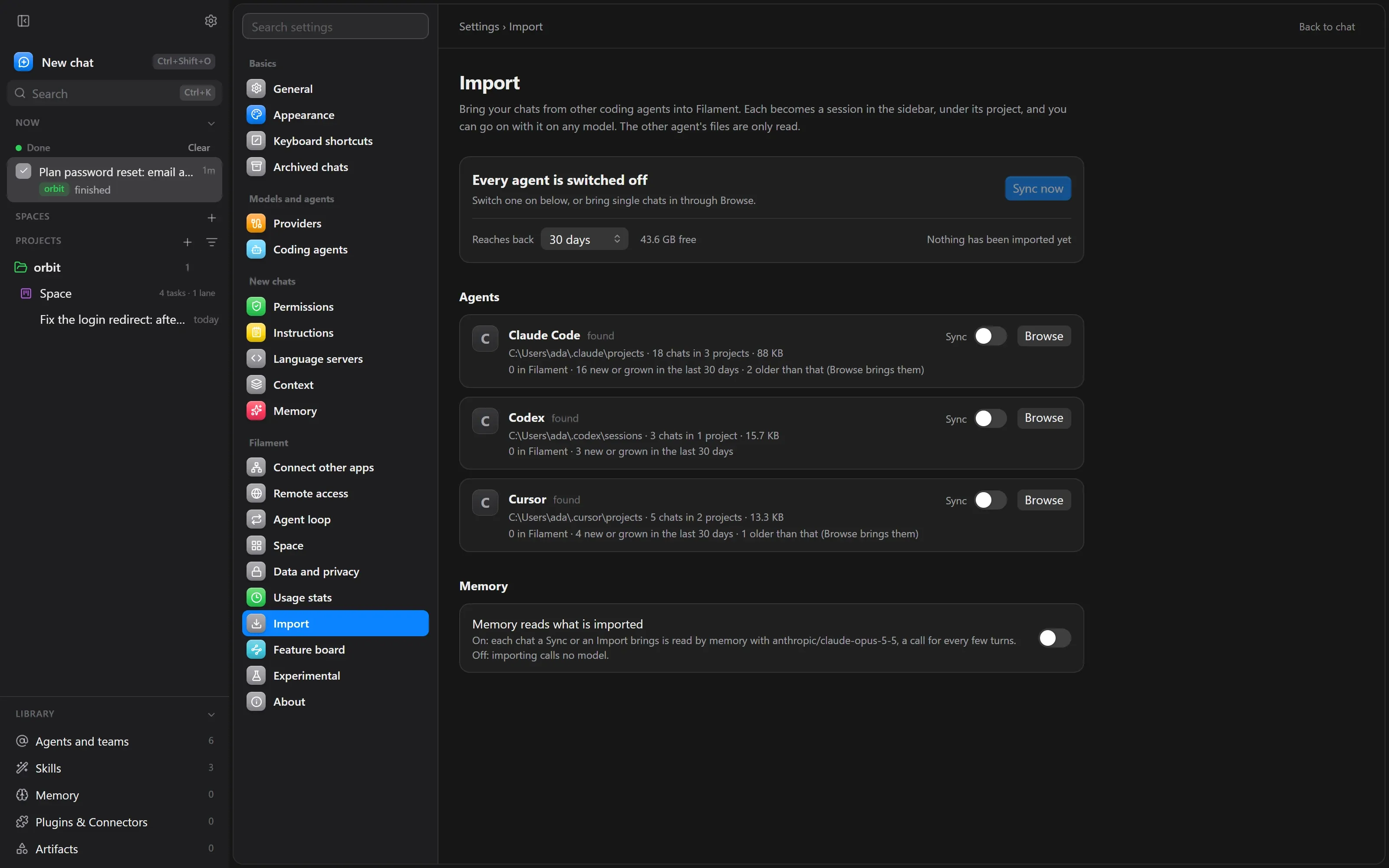
How to use it
- Open Settings › Import. It lists the agents whose chats it finds on this computer and says, before you click anything, how many chats are new or have grown.
- Turn on Sync for each agent you want (every switch starts off). Choose how far back to go, the last 7, 30 or 90 days or everything, and press Sync now.
- Or press Browse to list one agent’s chats by project folder, then bring in a single chat or a whole folder’s chats.
- Imported chats show under their projects in the left bar. Carry on with any of them, on any model.
- If you carry on with a chat here and later add to it in the other agent, the next Sync doesn’t overwrite your chat. The new turns arrive as a fork beside it, titled with “(went on in Claude Code)” or whichever agent it was.
- Memory reads imported chats only when you say so. Turn on Memory reads what is imported, or press Let memory read them for chats still unread.
Share memory with agents Filament doesn’t run
Claude Code on its own, Cursor, or any MCP client can share this memory too. MCP, the Model Context Protocol, is a standard way for agents to reach tools. Such an agent starts out knowing your rules and the project’s dossier, and corrections made anywhere reach it. Agents that Filament runs already get memory, so you only need this for agents you start elsewhere.
How to use it
-
Open Settings › Connect other apps and find Other agents. Settings › Memory › Other agents leads to the same place.
-
Copy the line, put one of your inbound keys (on the same page) where it says so, and run it once. For Claude Code it reads:
claude mcp add --scope user --transport http filament-memory http://127.0.0.1:20300/mcp/memory --header "Authorization: Bearer <your inbound key>" -
The agent gets memory’s tools, among them
brief,search,pitfalls,rememberandclose. Memory files what the agent learns under the folder the agent was started in. -
What such an agent stores counts as its own finding, never as your word, and is labeled that way, for example an agent found · Cursor (MCP).
Leave a project or a chat out
Memory reaches every conversation that goes through Filament. You can keep a project, a chat or an app out of it. A chat left out still runs with all its own settings and tools.
How to use it
- A project: open Settings › Memory, pick the project under Applies to, and turn on Leave this project out of memory. Its chats get no capture and no recall, and their sub-agents get no memory in their briefs. This holds in Filament and in any app working there, and covers the project’s worktrees too.
- One chat: type
@mem off(and@mem onto undo), or press Ctrl + K and typemem off. - An app: have it send the header
x-filament-memory: offwith its requests, or add it tomemory.capture.excludeClients. - Everything: turn off Settings › Experimental › Use memory.
Private, local and backed up
Memory lives on your machine. It has two parts: an archive of every conversation, encrypted at rest with Filament’s own key, and the engine’s database of what was learned. Memory’s content never goes into request records, logs or the event stream, and secret filters run before anything is learned.
How to use it
- In Settings › Memory, under Backups, turn on Back up daily. Set a Backup folder (a Google Drive for Desktop or OneDrive folder is a practical choice), the Hour of day and how many Backups kept.
- Each backup is a consistent copy of the archive and the engine’s database, gzipped with checksums, plus
memory.json. - To restore, open the console, Filament’s admin pages in your browser at Filament’s address. Each backup is listed there with Restore, which checks the backup’s checksums first.
- To keep the memory folder on another drive, set it under Settings › Memory › Advanced.
See what memory added, and how models did
Every request keeps a record of what memory did: each step, what it added and why, and how long it held the request. The record has counts and ids only, never your content. Memory’s own model calls show in Traffic beside yours, so nothing runs out of sight.
How to use it
- In the console, open Traffic and click a request to see its memory timeline. The request links on Memory → Activity open it too.
- Memory → Activity also shows:
- how long memory held recent requests
- the tokens it added
- how often replies used what it added
- Learning runs: what was learned from which session
- Memory’s own calls show in Traffic with a
memory · Learningormemory · Compaction summarypill. The Memory tab lists only those calls. - How models did, in Settings › Memory › Models and the console’s Memory → Overview, records each model’s finished work. It shows what kind of work it was (ran tests, edited files, only answered), how it ended, its rounds, time and tokens, and whether you corrected it. You can view one workspace or all of them, over a week, a month, three months or a year.