
Guide · Chapter 11
Desktop app and command line
Run Filament as a desktop app with a tray card, notifications and updates, and drive it from a terminal.
The desktop app
The desktop app is Filament as an app of its own, on Windows 11, macOS on Apple Silicon and Linux. It starts Filament, keeps it running, and shows the harness in its window. It brings its own runtime, so there’s nothing else to install first. To install it, see Get started.
How to use it
- Open the app. While Filament starts (longest the first time after an install), the window says Filament is starting. Opening the app again brings that window forward; it never starts a second app.
- Close every window when you’re done. Filament keeps serving your agents, and the tray icon brings the harness back.
- To have it ready when you sign in, right-click the tray icon and check Start at logon. The app then starts hidden in the tray.
- To stop it, choose Quit in the tray’s menu (on a Mac, also Filament › Quit Filament, ⌘ + Q). While a turn runs it asks first: Keep it running or Quit anyway. A cut turn goes on by itself at the next start.
- If Filament ends by itself, the app starts it again within a few seconds. If it can’t start at all, the app says why, with Try again and Open the log.
The tray icon and its card
The tray card shows what needs you, what works and what just finished in every chat, without opening the harness.
How to use it
- Click the tray icon to show the card. Click again, click anywhere else or press Esc to hide it. A double-click opens the harness.
- Now lists what needs you, what works and what just finished. Click a row to open its chat in the harness.
- Today shows the alerts, the day’s requests and tokens, each coding agent’s plan (how much of its window is used and when it resets), and the failover switch.
- Requests shows the newest requests with their provider, speed and tokens. Upstreams shows each provider’s health.
- Right-click the icon for the menu: Show the card, Open the harness, Open the dashboard (the console), Restart Filament, Start at logon, Notifications, Check for updates and Quit.
Notifications
The app tells you when a chat needs you, so you can work elsewhere while your agents run. It notifies you when a chat needs a yes for a command, an answer or a plan; when a turn stops on an error; and when a turn that ran two minutes or more, or a lead’s, finishes. A notification gives the chat’s title, its project and what it waits on, never the question’s own words.
How to use it
- Leave Notifications checked in the tray’s menu. In the app’s window, the same switch is in Settings › General.
- Click a notification to open the chat it names.
- Work in the harness window as usual. While you’re there, the app says nothing about chats or Home.
- Check the sidebar later: a turn that ended while no harness window was open is marked unread.
Updates
The installed app checks for a newer Filament and installs it when you say so. Nothing downloads until you press Update, and a download is kept only if it matches the SHA-512 checksum its release gives. Your data folder is kept.
How to use it
- The app looks for a newer release a minute after it starts and every six hours after. One out shows at the sidebar’s foot (Filament x is out, Update, Later) and in the tray’s menu.
- Press Update. It downloads while you work, and the notice shows how far it has got.
- Press Restart to update. Filament stops (asking first while a turn runs), the update installs, and Filament starts again. Quit installs a ready update too, without starting it.
- To look now, open Settings › About › Updates and press Check now.
- To stop the app looking by itself, uncheck Check for updates in the tray’s menu.
Set up and check from a terminal
The installed app puts filament on your PATH, so you can set up and check Filament from any terminal. Every command
drives the Filament that runs, and asks it nothing you didn’t type.
How to use it
- Open a new terminal after installing, so it finds
filament. - Run
filament setupto set Filament up a step at a time, each step skippable: start Filament, connect and sign in your coding agents, add a provider’s key (typed with nothing shown), and turn memory on or off. - Run
filament statusto see whether Filament runs, how many models can answer, your keys (masked), the coding agents and who each is signed in as, and memory. - Run
filament doctorwhen something is off. It checks the config, the data folder, the running server and every coding agent, and gives the fix for each problem. filament keys,filament agents,filament modelsandfilament memorymanage each part on its own.
Chat from the terminal
Send a message to a chat and watch the reply arrive, without opening the harness. This is handy for quick questions and scripts.
How to use it
- Run
filament chatsto list your newest chats. - Run
filament chat --chat <id> "Fix the failing test"to send a message to that chat. Without--chat, a new chat starts. - Add
--model <name>or--folder <path>to pick the model or the folder. The message can also come on stdin. - When the agent asks something (a permission, a question), the terminal asks it with numbered answers, and the turn goes on.
- Press Ctrl + C to stop watching. The turn goes on.
Change a setting from the terminal
Read or change one setting by its path, the same path its row in Settings names. This is useful for scripts and for machines you reach over SSH.
How to use it
- Find the setting’s path as its row names it, for example
agentLoop.permissionsormemory.enabled. - Run
filament settings get agentLoop.permissionsto print its value. - Run
filament settings set <path> <value>to change it. - Inside a chat,
/setand/settingsdo the same for that chat alone.
Where things live
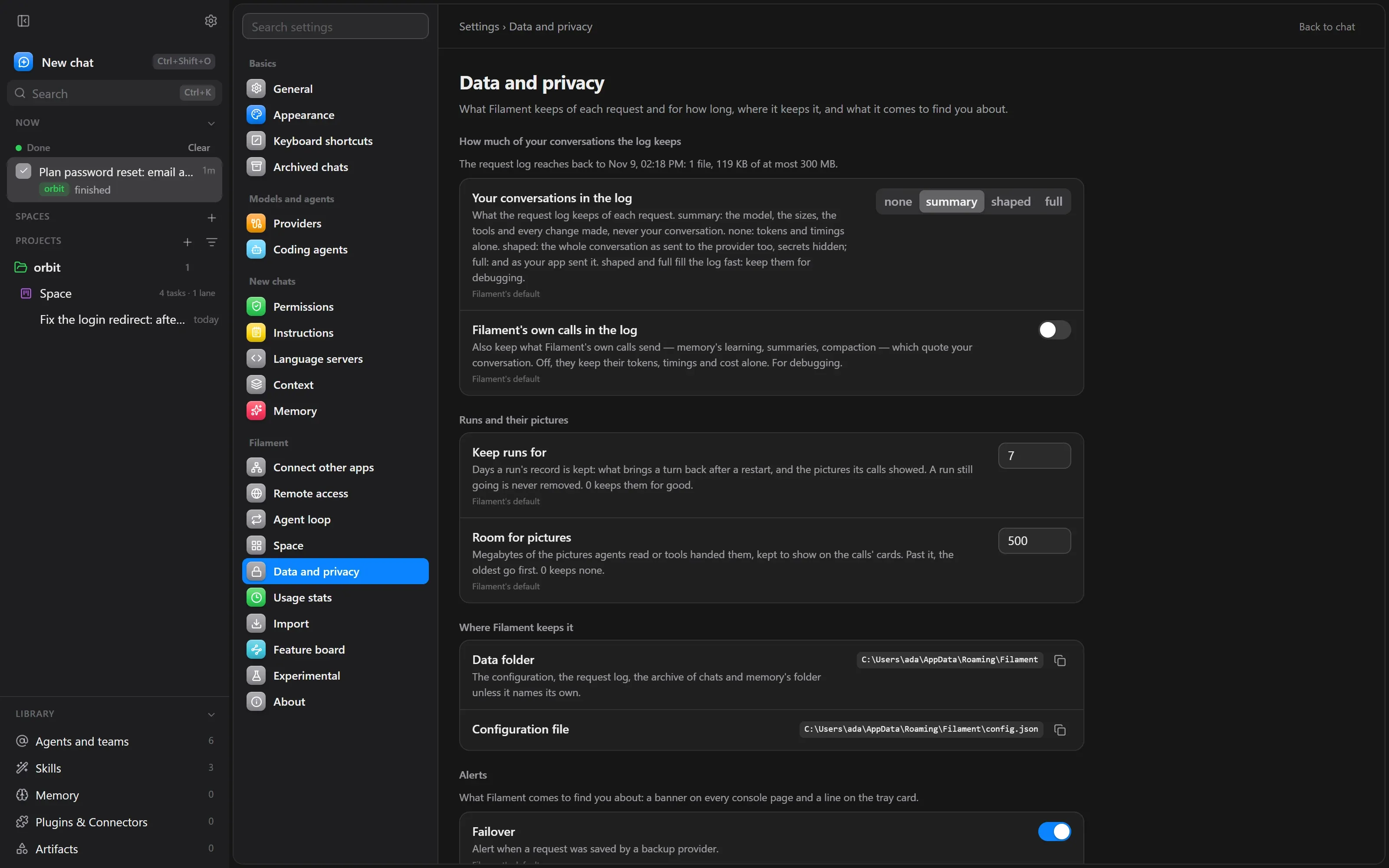
Everything Filament keeps is in one data folder: its configuration, its sealed secrets, the request log, the run logs and memory. Knowing where it is helps with backups and with moving to another machine.
How to use it
- Run
filament whereto print the data folder and the config file’s path. Settings › Data and privacy shows them too, with Copy. - On Windows the folder is
%APPDATA%\Filament. Elsewhere it is$XDG_CONFIG_HOME/filamentor~/.config/filament. config.jsonholds the whole configuration. Secrets inside it are encrypted, andsecret.keyis the key that encrypts them.- To move Filament to another machine, copy
config.jsonandsecret.keytogether. - The desktop app keeps its own files in a
desktopfolder inside, withserver.logholding what Filament printed.
Stop and restart
Stop Filament cleanly from a terminal, or restart it, without hunting for the process.
How to use it
- Run
filament stopto stop Filament once no turn runs.--forcestops it now. - For the desktop app’s Filament,
filament stopquits the app, which asks first where a turn runs. - Run
filament restartto restart a Filament that something starts again: the app, or systemd. It refuses one you started by hand. - In the terminal that runs Filament, Ctrl + C also stops it.
- Run
filament opento open the harness in your browser.
Settings
Every page of Settings, from adding a provider to the experimental switches, and how to change one chat’s own setup, is in Settings.